


One workbook turns into twelve tabs for imports, one per client, one per sprint, or one per month you refuse to delete “just in case.” Then you need to hide half of them, rename a batch with the same prefix, or delete the noise after a cleanup, and Sheets asks you to live inside the tab strip like it is a full-time job.
That friction is normal: Sheets assumes you’ll move one tab at a time, not wrangle forty. Sheets Tab Manager is a free add-on that opens a sidebar where you search tabs, multi-select, and run bulk actions in one place.
What “tab debt” actually costs
When names drift (Copy of Copy of…), hidden sheets pile up, or you need five tabs gone before sharing the file, small delays stack into real time. Every extra right-click is also a chance to click the wrong sheet or miss a hidden tab entirely.
Bulk workflows matter most when the spreadsheet is the system of record, not a quick scratch pad.
What you can do from the sidebar
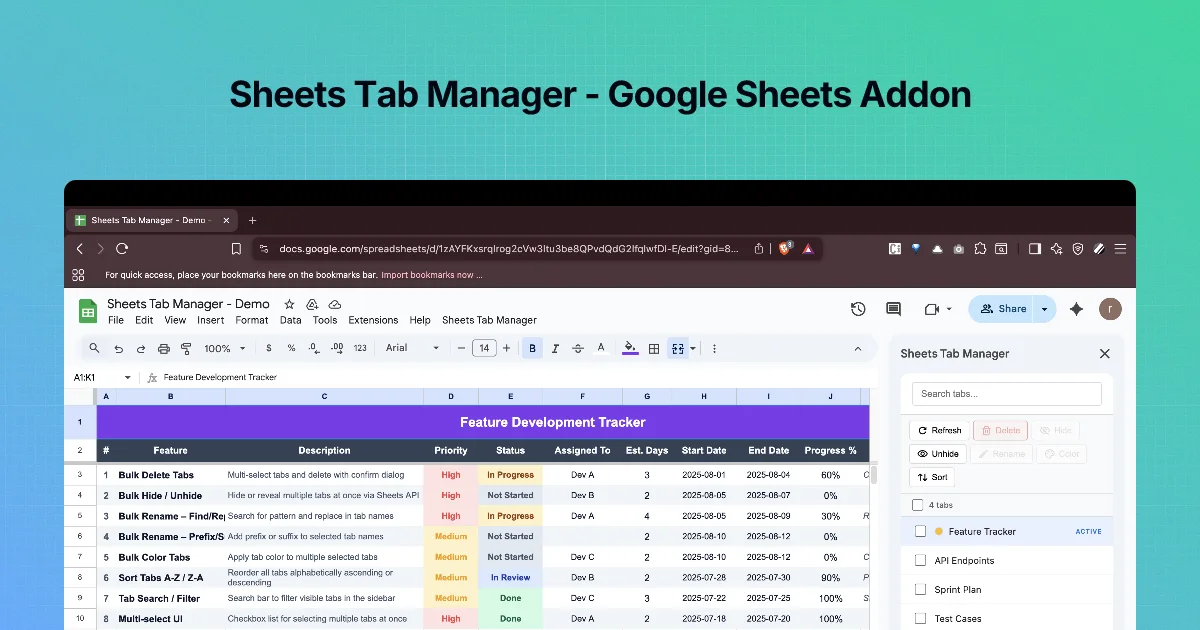
Open Extensions and launch the add-on, then work from the sidebar instead of the bottom bar:
- Bulk delete selected tabs, with a confirmation step so one sloppy click does not wipe data.
- Hide or unhide many tabs at once so shared views stay tidy without losing sheets you still need privately.
- Rename in three modes: adjust one name, find and replace across selected tab titles, or add a prefix or suffix when everything needs the same label pattern.
- Color multiple tabs together so groups read at a glance.
- Sort all tabs A–Z or Z–A when alphabetical order beats historical clutter.
- Search and filter the list when the workbook outgrows what fits on screen.
For day-to-day cleanup, that replaces a lot of “I should script this” without opening Apps Script.
See it in context
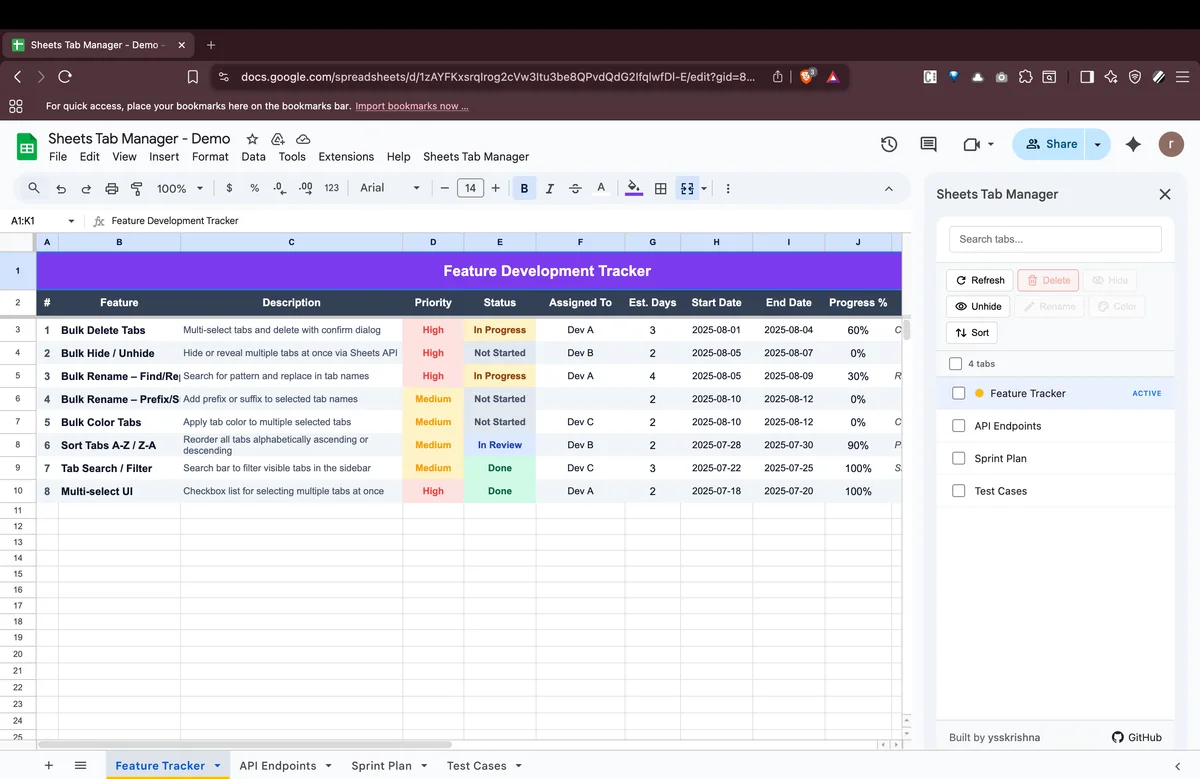
Sidebar next to a small feature tracker: search, action buttons, multi-select with Select all, and the active tab highlighted so you know where you landed.
In short
- Treat tab cleanup like file hygiene: batch it when the list gets long, not tab-by-tab at midnight.
- Use find and replace on tab names when naming conventions change across many sheets at once.
- Hide aggressively for shared links; unhide in bulk when you need those sheets back for editing.
Install and compare details
If you want screenshots, links, and the short portfolio listing before installing, see Google Sheets Tab Manager.
Leave a review
If the sidebar saves you even one repetitive rename cycle, a star and a sentence on the Google Workspace Marketplace listing helps other people find it among generic “sheet tools.”