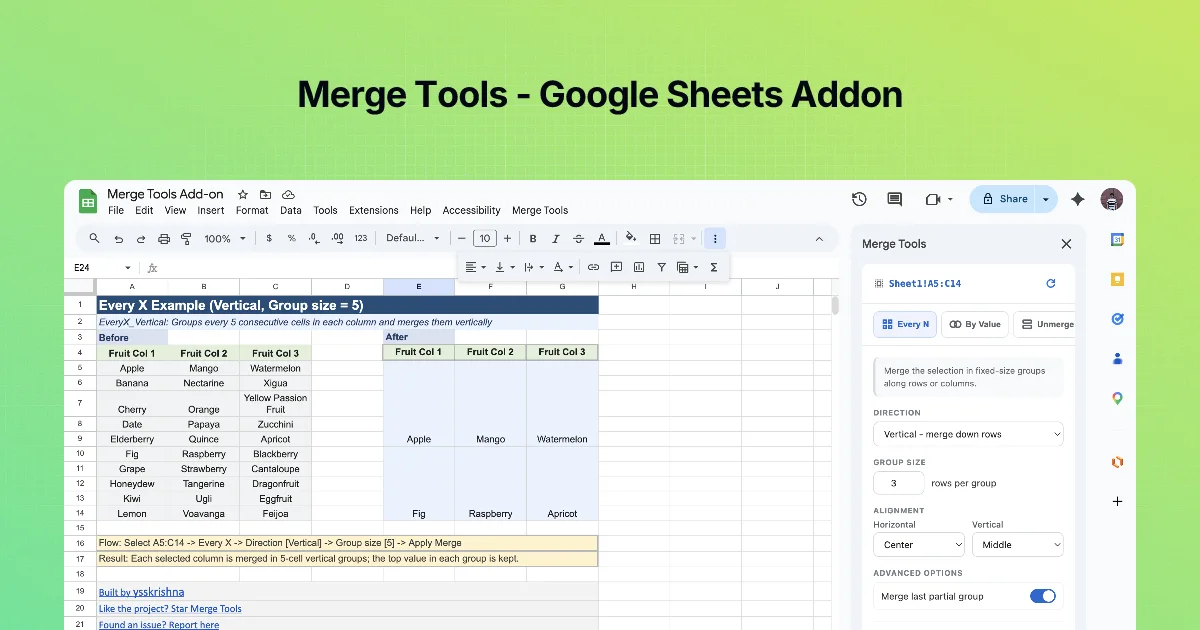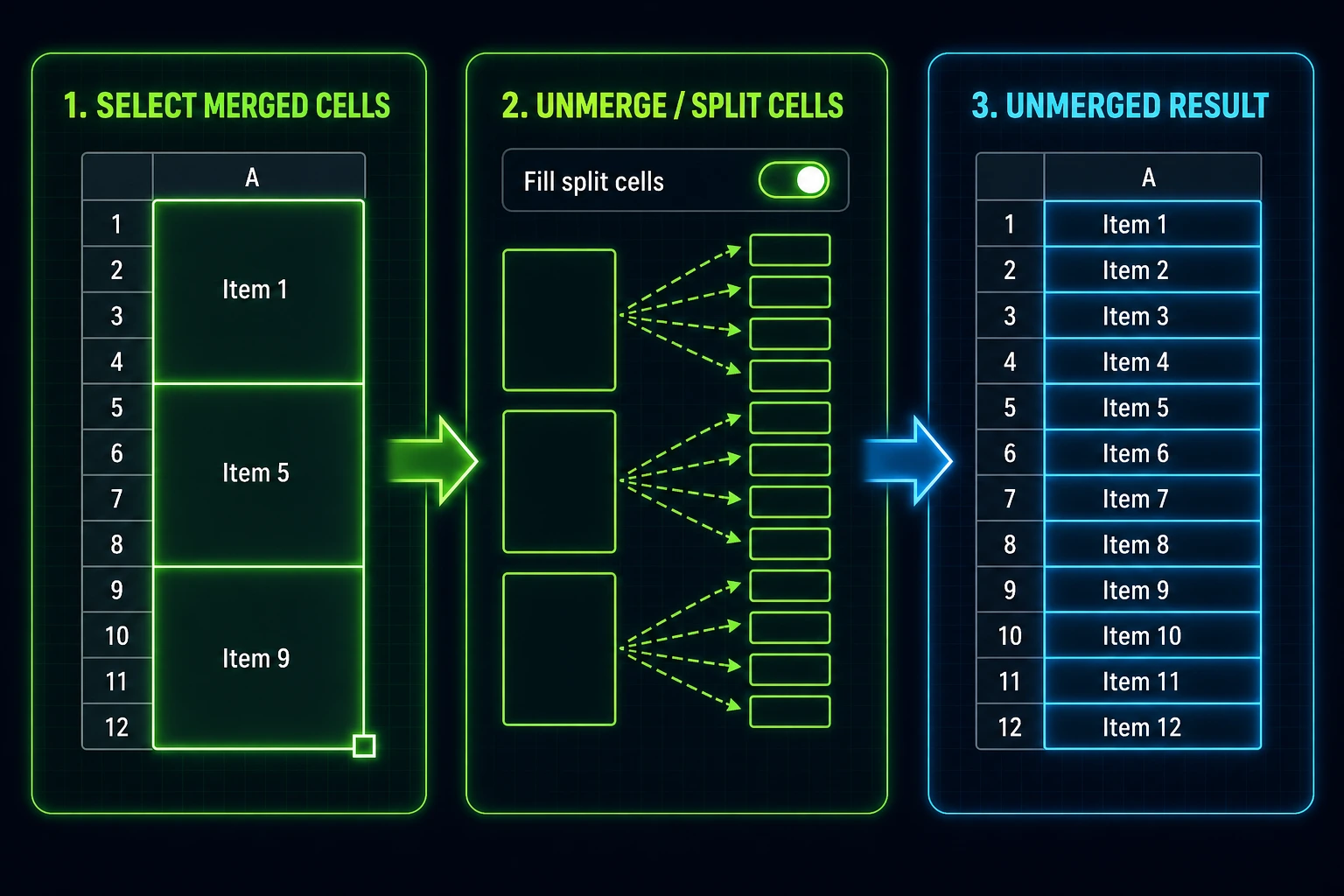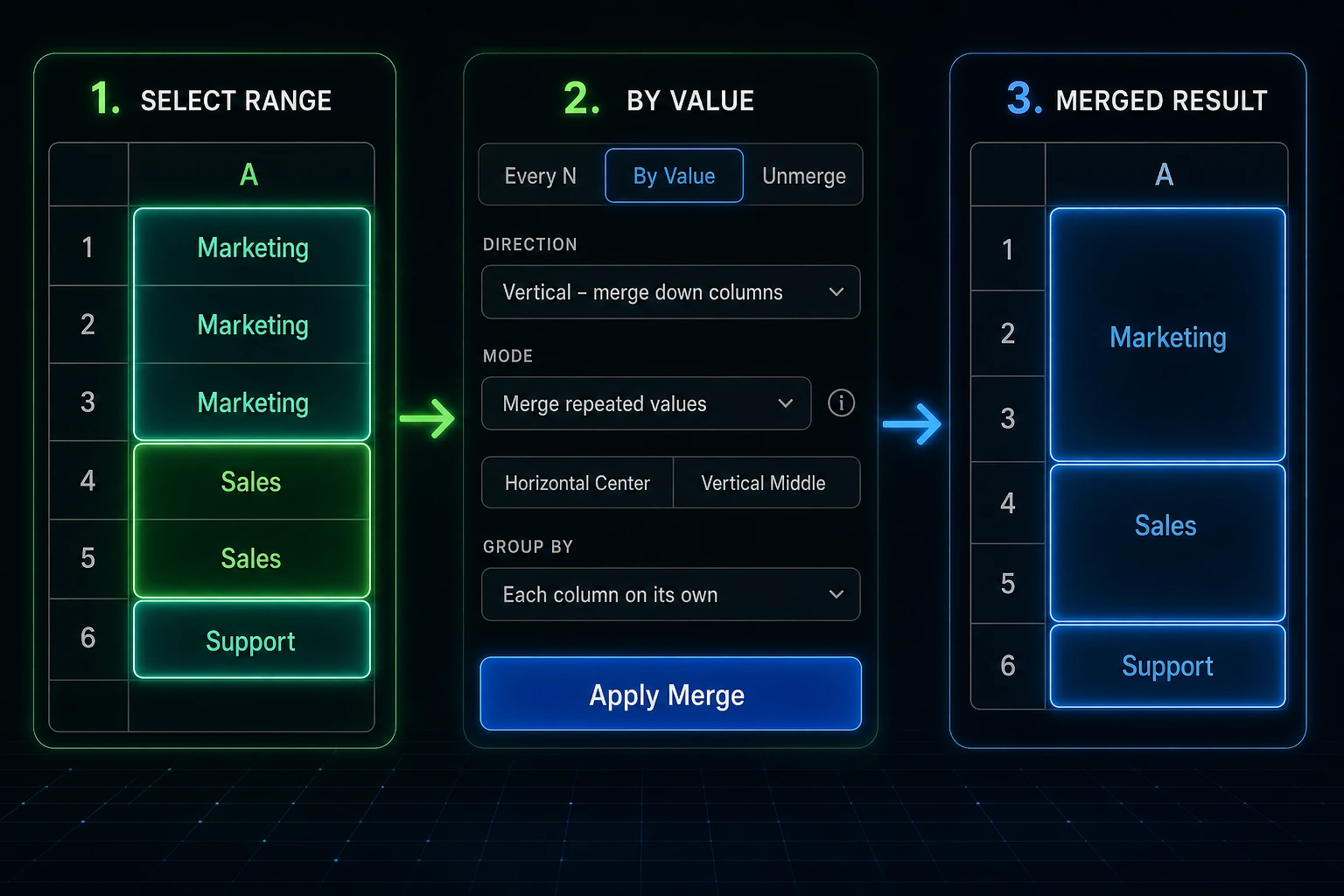



There's a dangerous little moment in Google Sheets: you select a few cells, click merge, and realize too late that only one value survived.
That's fine when the other cells were empty. It's not fine when those cells held names, notes, labels, or pieces of an address.
Merge Tools has a Concat flow for the cases where the content matters as much as the merged layout.
Merge without losing the words
Normal merging is about cell shape. Concat joins the selected values into one result, then merges the cells. You end up with one larger cell that still carries the information from the range.
Use this for summary labels, combined notes, printable blocks, address-style fields, and small handoff sheets where the final cell should read cleanly.
Pick a separator that fits
A comma works for short labels. A newline works better when each value should stay visually separate. A pipe, dash, semicolon, or custom separator can match the format your team already uses.
This is the part that usually turns into helper formulas, copy-paste values, and one more manual merge. Merge Tools keeps it in the sidebar.
Clean the rough edges
Spreadsheet text is rarely perfect. One cell has an extra space. Another is blank. A third has the value you want, but not the spacing you want.
Before merging, you can trim whitespace and skip empty cells so the final text doesn't come out with awkward gaps or doubled separators.
Choose the direction
Combine down a column when several rows should become one summary cell. Combine across a row when multiple columns should become one label, title, or description.
The direction is small, but it changes the result completely. Check the range before running it.
Three quick steps
- Open Extensions → Merge Tools.
- Select the range whose values should be combined.
- Choose Concat, set Direction, separator, trim/skip-empty, and alignment, then click Concatenate & Merge.
Try it and learn more
The Merge Tools — Examples Workbook has Concat_Vertical and Concat_Horizontal tabs with before-and-after samples for concatenate-and-merge.
For the add-on as a whole, the Google Sheets Merge Tools listing is the short product page. For where this workflow fits alongside the other modes, start with Merge Tools for Google Sheets.
Leave a review
If Merge Tools helped you merge cells without losing the text inside them, the Google Workspace Marketplace listing is the place for a short note. Stars and a sentence or two help other people find it before they learn the hard way what normal merge does to extra values.