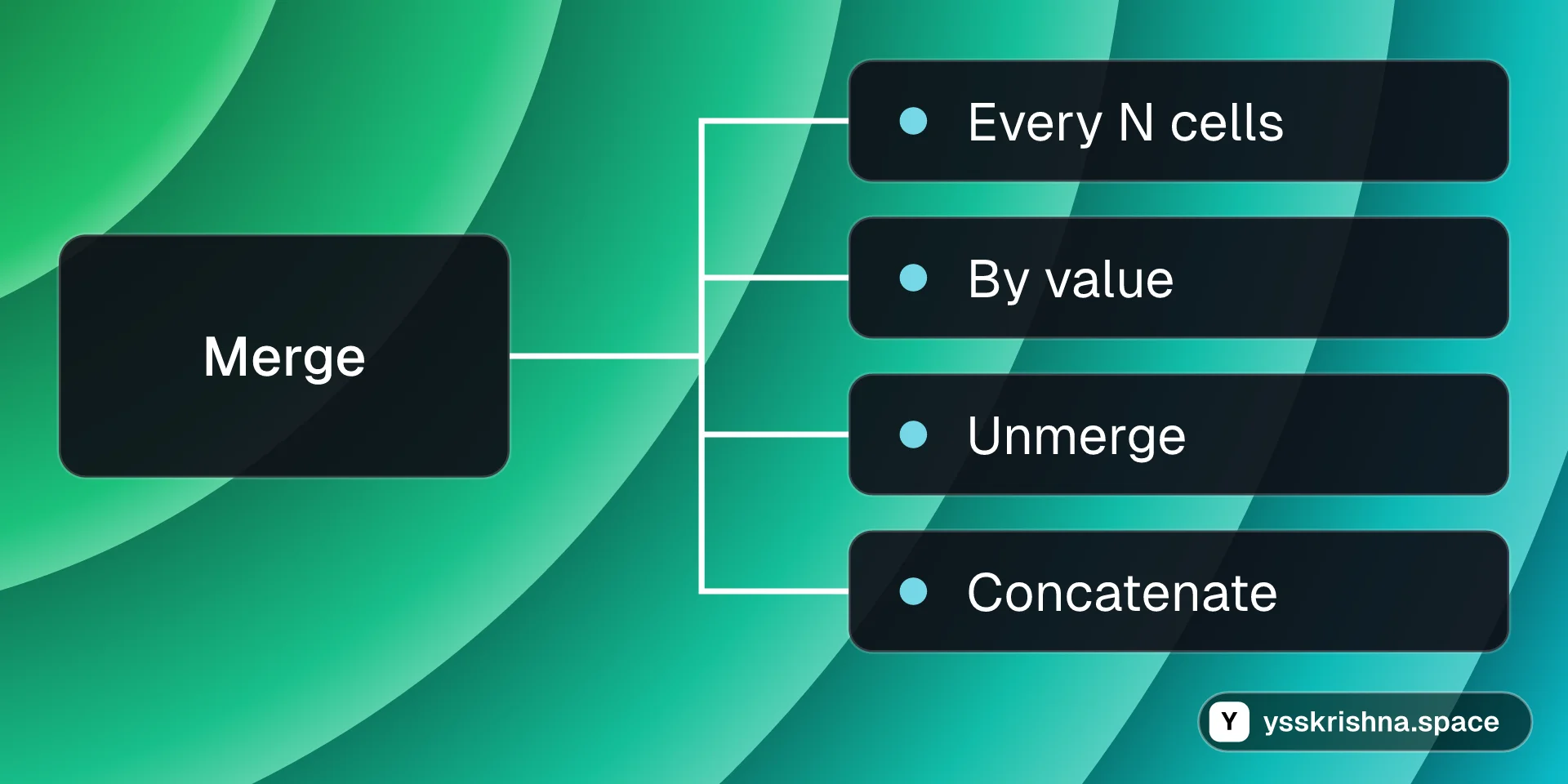

Every N merges the selection into blocks of a fixed size. It is the tool for regular layouts: a schedule with three slots per day, a sign-up sheet with five lines per team, a printed form with pairs of rows.
Options
From the sidebar:
- DIRECTION: e.g. "Vertical - merge down rows", or horizontal across columns.
- GROUP SIZE: a number, shown as "3 rows per group".
- ALIGNMENT: Horizontal (e.g. Center) and Vertical (e.g. Middle).
- ADVANCED OPTIONS: a toggle Merge last partial group.
- Button: Apply Merge.
How blocks are formed
With a vertical direction and group size 3 on A5:A14 (10 rows):
With Merge last partial group on, the leftover row(s) become their own (smaller) block. With it off, they stay as normal cells. The examples workbook has an EveryN_Leftover tab for this case.
Each block keeps the first cell's value. Put labels in the first cell of each block before merging.
Multiple columns and horizontal
If the selection spans several columns, each column is merged in blocks independently with the same group size (A5:C14 gives three columns of blocks).
Switch DIRECTION to horizontal to merge across columns, e.g. every 2 columns in a header row so each label spans a pair (EveryN_Horizontal tab in the workbook).
Step by step: a three-slot schedule
- In A2:A10 type days in every third row:
Monin A2,Tuein A5,Wedin A8. In B2:B10 type times:09:00,11:00,14:00repeated. - Select A2:A10. Open Every N.
- DIRECTION vertical, GROUP SIZE 3, ALIGNMENT Center / Middle.
- Click Apply Merge. Each day now spans its three time slots.
- Try A2:A11 (ten rows) and toggle Merge last partial group to see the difference on row 11.
Every N or By Value
Use Every N when the size is a rule of the layout (time slots, fixed-size forms). Use By Value (chapter 3) when block sizes vary with the data, because it follows the content. Avoid Every N on data you will sort.
Practice: a shift rota
Start with this data in A1:B10 (header plus nine rows), where every three rows are one shift:
| Shift | Person |
|---|---|
| Mon AM | Asha |
| Mon AM | Ravi |
| Mon AM | Meera |
| Mon PM | John |
| Mon PM | Li |
| Mon PM | Sara |
| Tue AM | Dev |
| Tue AM | Kiran |
| Tue AM | Omar |
- Select A2:A10 (the Shift column without its header).
- Open the Every N tab. Set DIRECTION to vertical, GROUP SIZE to 3.
- Set Vertical alignment to Middle, then click Apply Merge.
Expected result: three merged cells, A2:A4 ("Mon AM"), A5:A7 ("Mon PM") and A8:A10 ("Tue AM"). The Person column is untouched.
Edge case: add a tenth person in row 11 under a new shift "Tue PM" and select A2:A11. Here the toggle changes nothing, because the leftover is a single row. It matters when the leftover is two or more rows, for example a GROUP SIZE of 4 on ten rows leaves a partial group of 2.
If Mon PM had only two people, Every N would still merge rows 5-7 and swallow the first Tue AM row into the Mon PM block. By Value would merge exactly the rows that say "Mon PM".
Common mistakes
- Including the header row in the selection, which shifts every block by one row.
- Selecting several columns when only the label column should merge; every selected column is merged in the same blocks.
- Forgetting that each merged block keeps only its top-left value. That is fine when the rows in a block repeat the same label, and it silently discards data when they do not.
Quick check
You have 10 rows, group size 4, and Merge last partial group is on. How many blocks result?