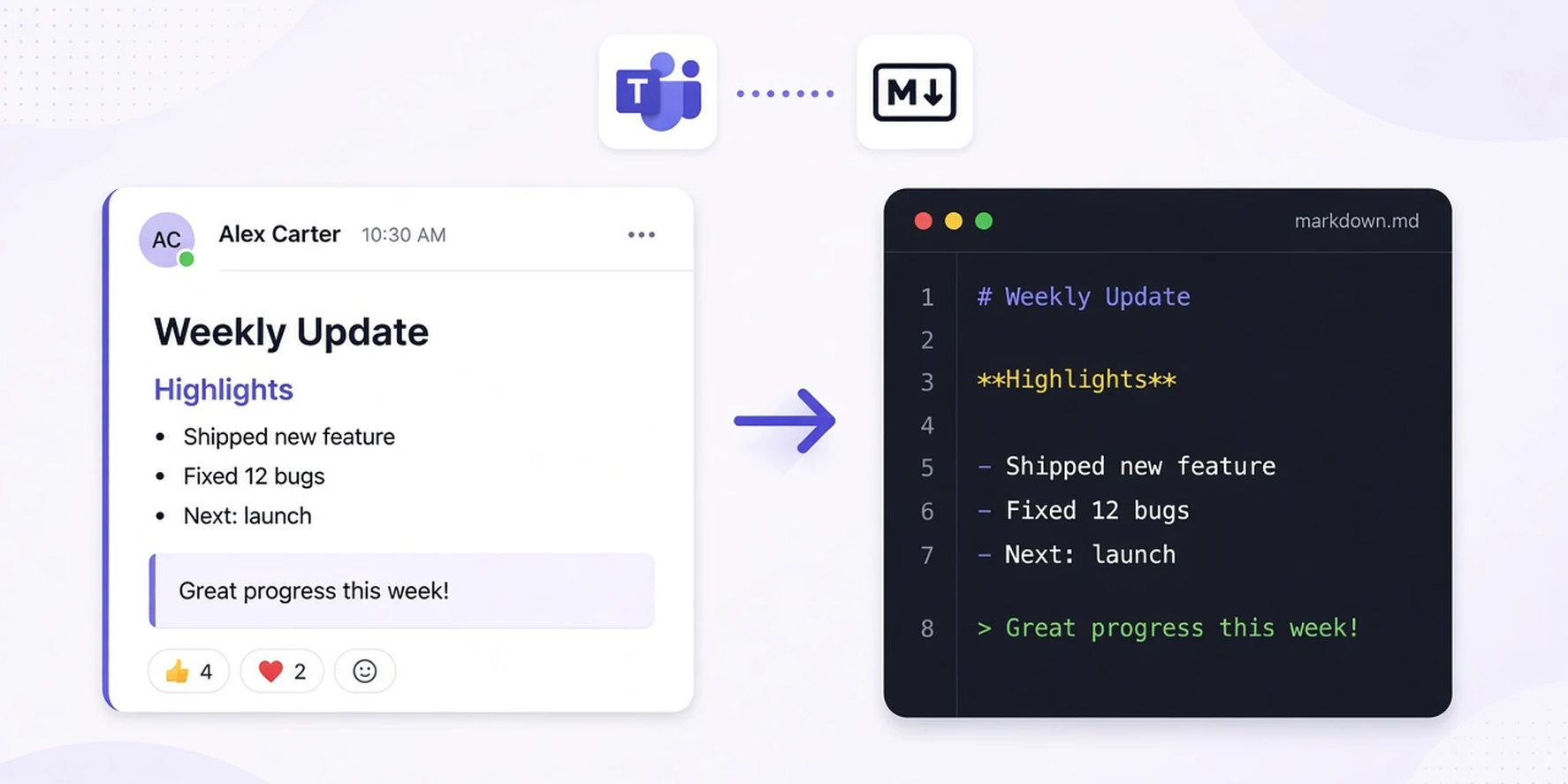
Markdown Editor With Live Preview
Write Markdown and preview it live, with tables, syntax-highlighted code, and Mermaid diagrams, in your browser.

What this Markdown editor does
Markdown is a lightweight format for README files, docs, blog drafts, and notes. This tool lets you write Markdown and see rendered output instantly so you can catch formatting issues before publishing.
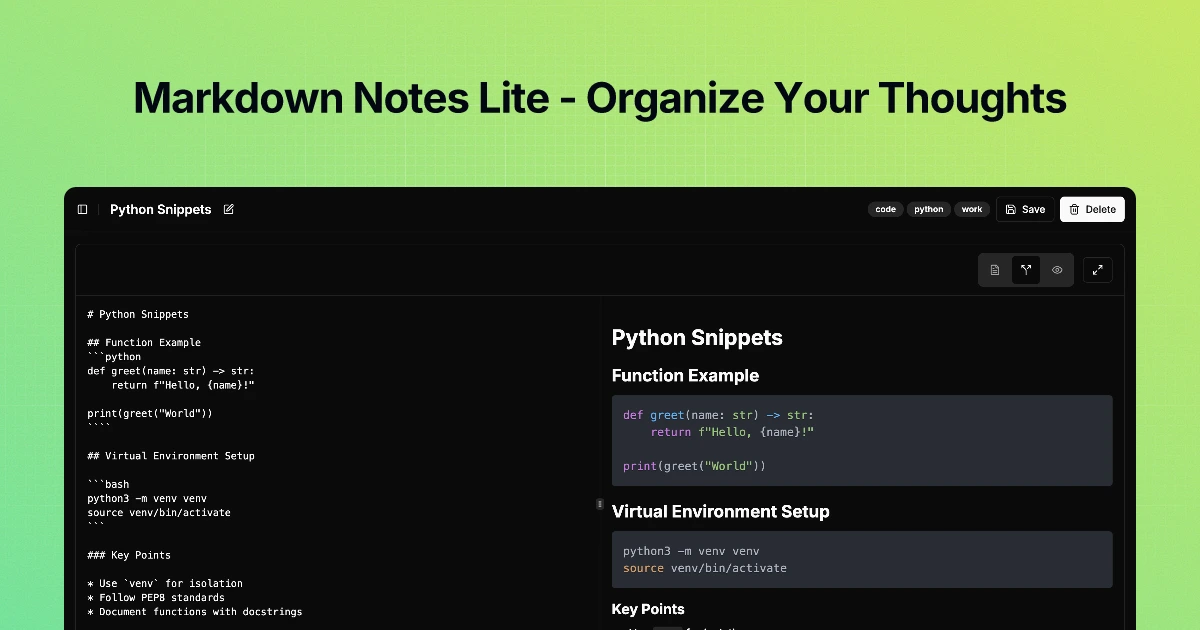
You can switch between editor-only, split, and preview-only layouts, then use fullscreen for longer writing sessions. When finished, copy your source or download it as a .md file.
Supported Markdown features (tables, code, Mermaid)
The preview supports GitHub Flavored Markdown through `remark-gfm`, including tables, task lists, strikethrough, and autolinks. Fenced code blocks are syntax highlighted for common languages.
Mermaid diagrams render from fenced blocks tagged `mermaid`, which is useful for flowcharts and sequence diagrams in technical documentation.
How to use the live preview workflow
Paste or type Markdown in the editor pane and watch the preview update in real time. Use split mode for side-by-side editing and preview mode for final reading checks.
Before publishing, verify headings, links, tables, and code blocks in preview. Then copy the source or download your markdown file for GitHub, docs sites, or CMS publishing.
Privacy, storage, and output differences
Your markdown content stays in your browser during editing. This tool has no account login, cloud sync, or server-side document save.
Refreshing can reset your draft to the sample text, so copy or download important work before leaving the page. Final rendering can still differ slightly on platforms with custom Markdown rules or CSS themes.
Frequently asked questions
How do I preview Markdown online without installing software?
Paste or type Markdown in the editor and switch to split or preview mode to see rendered output instantly. The preview supports common GFM elements like tables, task lists, links, and fenced code blocks, all without signup.
Does this editor support GitHub Flavored Markdown (GFM)?
Yes. GFM features such as tables, task lists, strikethrough, and autolinks are enabled through `remark-gfm`, so common README-style syntax previews as expected.
Can I preview syntax-highlighted code and Mermaid diagrams?
Yes. Fenced code blocks are highlighted with Prism, and code fences labeled `mermaid` render as diagrams in preview. This is useful for documenting workflows, architecture, and systems quickly.
What is the difference between editor, split, and preview modes?
Editor shows only the source textarea. Split shows source and rendered preview side by side (on wider screens). Preview shows only the rendered output. Use the toolbar icons to switch; fullscreen expands the workspace for long drafts.
Is this Markdown preview tool safe for confidential drafts?
Yes. Rendering happens in your browser, and your draft is not uploaded to a server by this tool. For sensitive work, still keep your own local backup by copying or downloading the file before closing.
How do I copy or download my markdown file?
Use Copy to place the full source on your clipboard, or Download to save a `.md` file. Clearing the editor removes your current content, and there is no cloud account recovery.
How is this different from Typora, Obsidian, or VS Code preview?
This tool is built for quick in-browser editing and preview without installation. Desktop apps add project-level features like plugin ecosystems, vaults, or repository workflows. Use this when you need a fast, no-setup markdown check.
Why does final Markdown styling differ on my blog or docs site?
Core syntax usually matches across GFM-compatible renderers, but each platform applies its own CSS and sometimes different markdown extensions. Always run a final preview on the target platform when layout details matter.