

Desktop responsive mode is useful, but it cannot reproduce every real-phone bug. Touch targets, the on-screen keyboard, mobile Safari, permissions, and HTTPS-only browser features can behave differently on the device in your hand.
The catch is that localhost always means "this device." On your laptop, http://localhost:3000 points to your laptop. On your phone, it points to the phone itself.
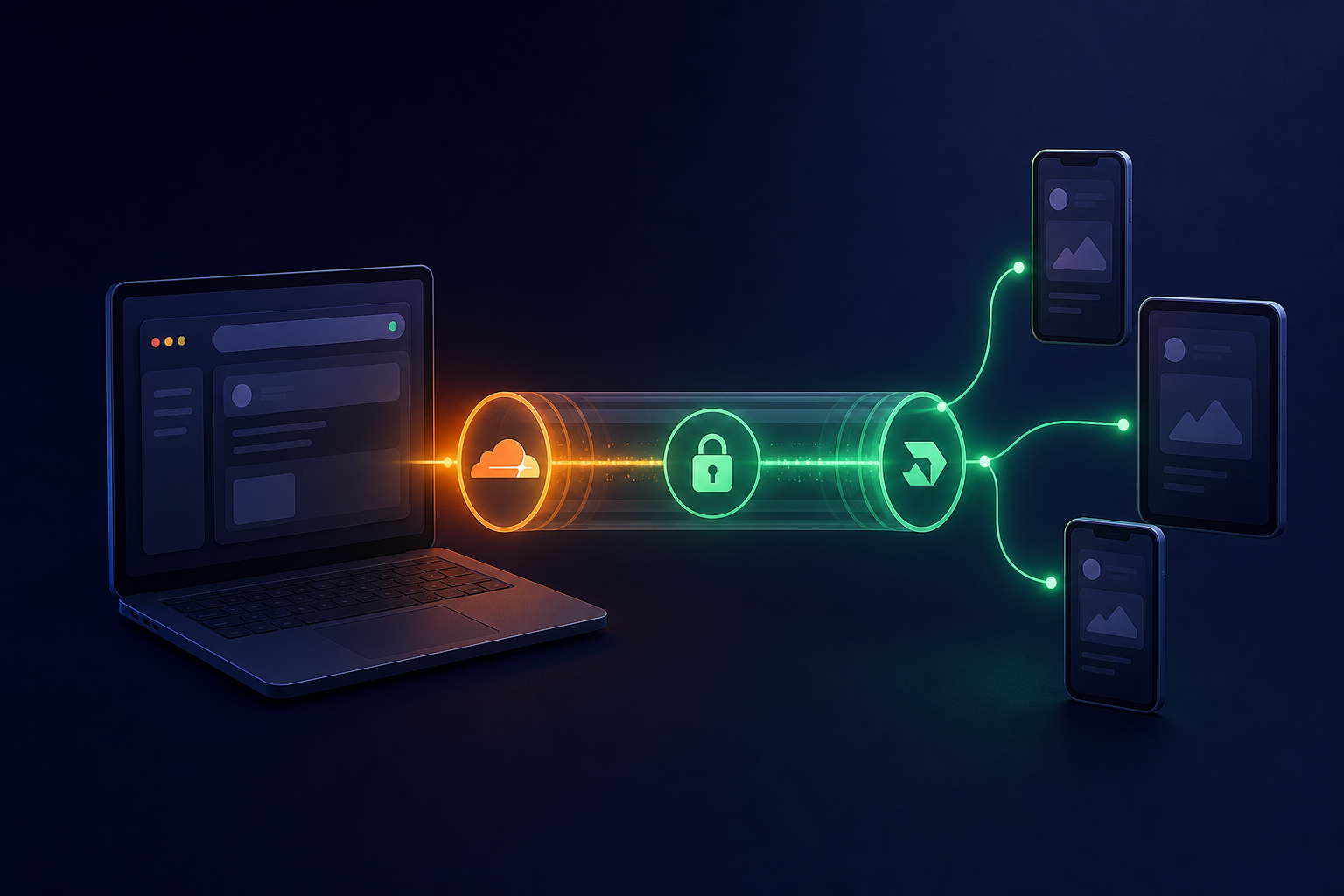
To access localhost from mobile, give your local server a temporary public HTTPS URL. This guide shows two beginner-friendly ways to do it: Cloudflare Quick Tunnel and ngrok.
Quick answer
- Start your website or API on your computer.
- Open a second terminal.
- Run one of these commands:
# Cloudflare Quick Tunnel
cloudflared tunnel --url http://localhost:3000

# ngrok
ngrok http 3000- Copy the HTTPS URL printed in the terminal.
- Open that URL in Safari or Chrome on your phone.
Replace 3000 with the port used by your project. Common examples are 5173 for Vite and 8000 for many Python APIs.
Before you create a tunnel
Make sure your local site already works on the computer. Open http://localhost:3000, or the correct URL for your project, in your desktop browser.
Keep that development server running. A tunnel only forwards traffic to it. The tunnel does not start your app.
You will usually keep two terminal windows open:
- One for your development server, such as
npm run dev. - One for Cloudflare Tunnel or ngrok.
Option 1: Cloudflare Quick Tunnel
Cloudflare Quick Tunnel is the shortest route when you only need a temporary link. It works without a Cloudflare account and creates a random trycloudflare.com address.
Cloudflare describes Quick Tunnels as a testing feature, not a production hosting service. The address is temporary and can change each time you start it.
Install cloudflared
On macOS with Homebrew:
brew install cloudflaredFor Windows or Linux, follow Cloudflare's official cloudflared installation guide.
Check that the command is available:
cloudflared --versionStart the Cloudflare tunnel
Leave your app running, then open a second terminal:
cloudflared tunnel --url http://localhost:3000
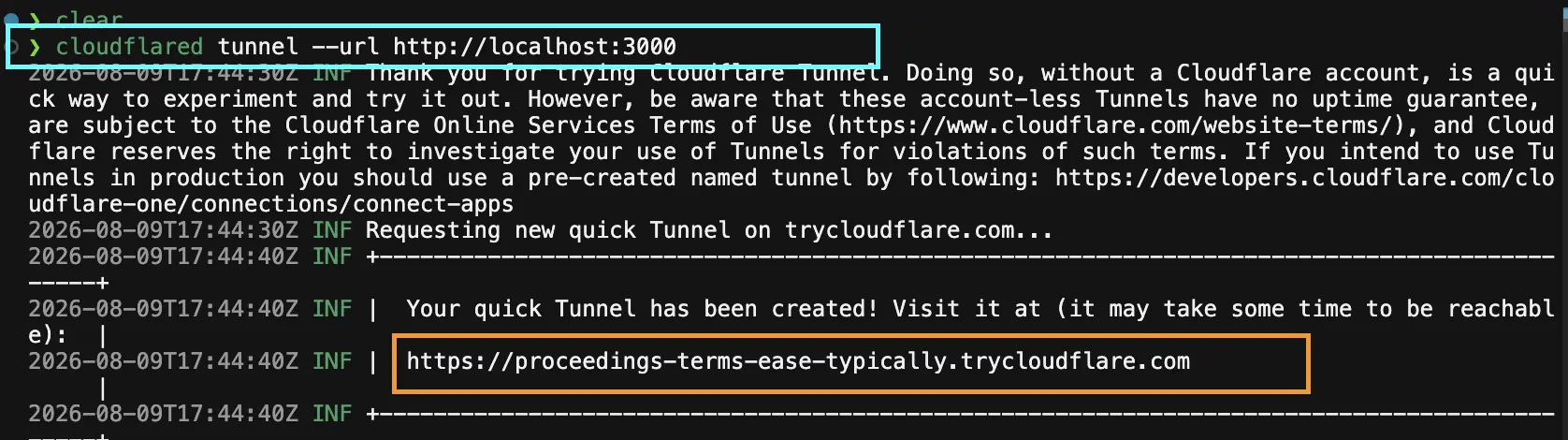
cloudflared will print a URL similar to:
https://example-name.trycloudflare.com
Copy the HTTPS URL and open it on your phone. Your phone can use Wi-Fi or mobile data because the request travels through the tunnel.
Press Ctrl+C in the terminal when you finish testing.
Option 2: ngrok
ngrok also exposes localhost through a public HTTPS address. It takes a few more setup steps because you need a free account, but its local Traffic Inspector makes debugging requests much easier.
Create an account and copy your authtoken
Create an account at ngrok.com, then copy the authtoken from the ngrok dashboard.
Treat this token like a password. Do not put it in a screenshot, Git repository, or shared command history.
Install ngrok
On macOS with Homebrew:
brew install ngrokWindows and Linux users can choose their platform on the official ngrok download page.
Save the authtoken once:
ngrok config add-authtoken REPLACE_ME_WITH_AUTH_TOKENReplace REPLACE_ME_WITH_AUTH_TOKEN with the token from your dashboard.

Start the ngrok tunnel
With your local app still running, enter:
ngrok http 3000
Look for the HTTPS forwarding address in the output:
https://example.ngrok-free.app
Open that address on your phone.
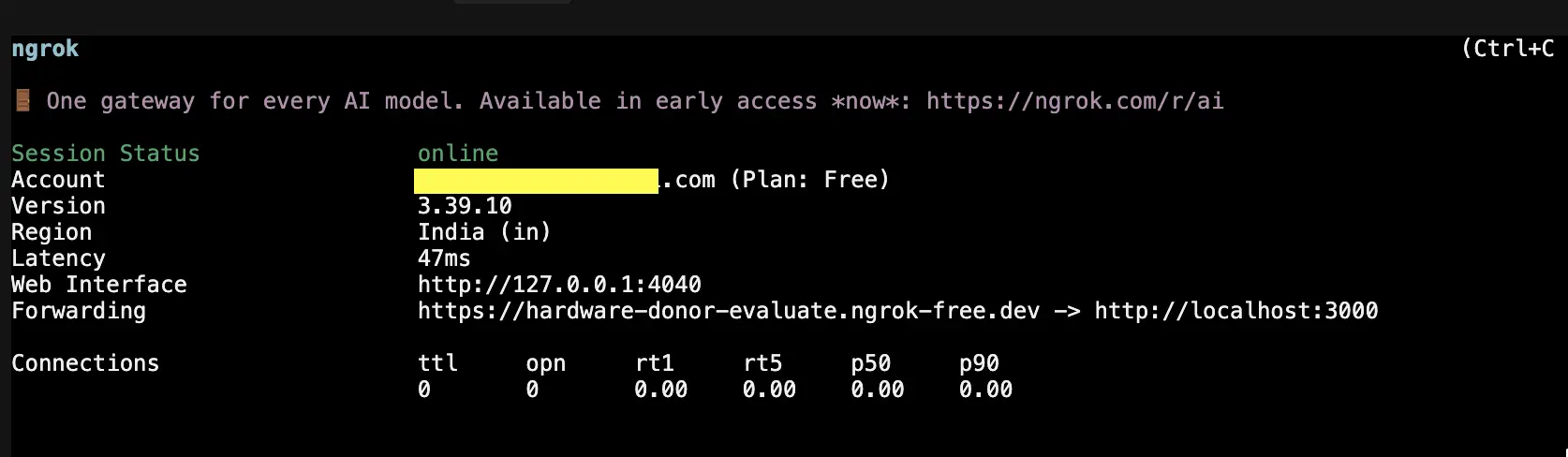
The free service may display an ngrok warning page before loading your app. Continue through it to reach the local site.
Inspect requests from your phone
While ngrok is running, open http://127.0.0.1:4040 on your computer. The Traffic Inspector shows the method, path, status code, headers, response, and timing for requests passing through the tunnel.
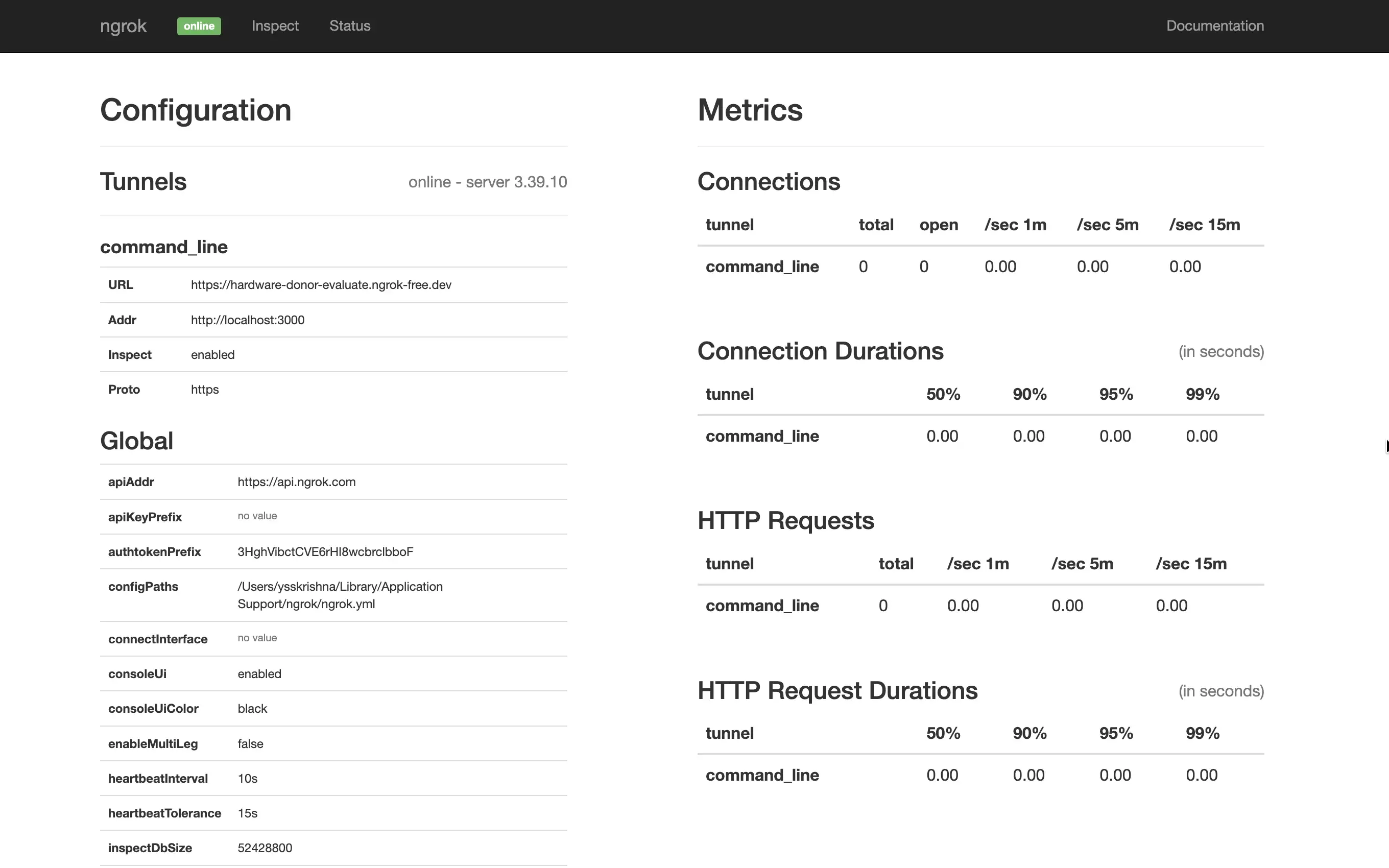
This is useful when the page opens on mobile but an API request fails. You can confirm whether the request reached your computer and inspect the response without debugging on the phone.
Cloudflare Tunnel or ngrok?
Choose Cloudflare Quick Tunnel when you want the fastest setup and do not need an account.
Choose ngrok when you want to inspect and replay HTTP traffic while testing. The local inspector often saves more time than the account setup costs.
Both options provide HTTPS and work when the phone and computer are on different networks. Both also use temporary addresses for this basic workflow.
Common problems and fixes
The tunnel reports connection refused
Your local server is stopped, or the tunnel points to the wrong port. First open the localhost URL on your computer. Then check that the port in the tunnel command matches it.
For example, if your app runs at http://localhost:5173, use:
cloudflared tunnel --url http://localhost:5173
or:
ngrok http 5173The tunnel URL shows a blocked host error
Some development servers reject hostnames they do not recognize. Follow your framework's development-server documentation to allow the exact ngrok or trycloudflare.com hostname.
Do not disable host checks globally unless you understand the risk. An exact temporary hostname is safer.
The page opens, but API calls fail
Check the API URL used by your frontend. If it still calls http://localhost:8000, the phone will try to find port 8000 on the phone itself.
Create a second tunnel for the API, then use that HTTPS address as the frontend's development API URL. You may also need to add the frontend tunnel address to the API's CORS allowlist.
A feature still fails on the phone
Open the browser console through Safari Web Inspector or Chrome remote debugging, and check the ngrok Traffic Inspector if you chose ngrok. Look for failed network requests, mixed HTTP and HTTPS content, permission errors, or a hard-coded localhost URL.
Use tunnel URLs safely
A tunnel makes your development server reachable from the internet. Anyone who has the URL may be able to open it while the tunnel is running.
- Do not expose real customer data, admin pages, secret keys, or development tools with unsafe actions.
- Share the URL only with people who need it.
- Stop the tunnel with
Ctrl+Cas soon as you finish. - Add access controls before using a tunnel for anything sensitive.
For quick mobile testing, that is the whole workflow: keep the app running, start one tunnel, and open its HTTPS address on your phone.