Text Power Tools for Google Sheets: Clean, Change Case and Extract Text
Fix messy text in Google Sheets without formulas: trim spaces, change case and naming styles, add prefixes, and extract emails, URLs, phones and dates.
7 chapters · about 21 min · free
 Google Sheets
Who it is for: Anyone who cleans imported or pasted data in Google Sheets: ops, marketing, sales ops, analysts and developers preparing data for an import.
What you will learn
- Diagnose the common kinds of messy sheet text and pick the right fix
- Trim, filter and strip characters across a whole range in one step
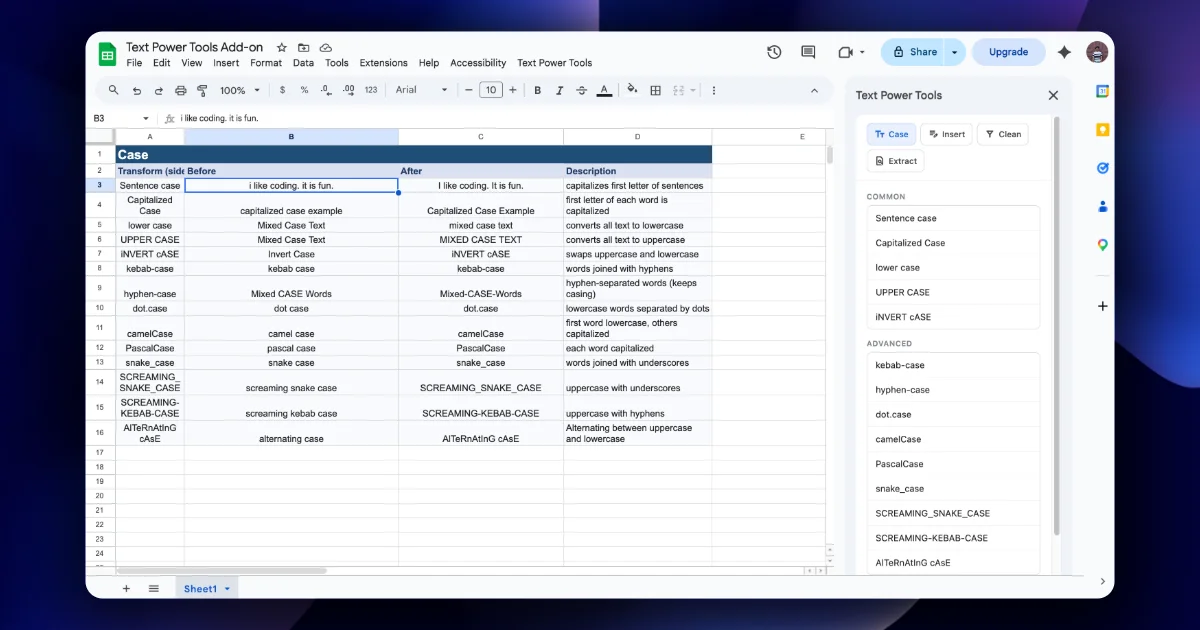
- Change case and convert to programmer naming styles such as snake_case and camelCase
- Add prefixes, suffixes or text at a position without helper formulas
- Extract emails, URLs, phone numbers, hashtags, dates and times from free text
- Write a custom regex for patterns the presets do not cover
- Run a safe, repeatable clean-up on a real export
Before you start
- A Google account with Google Sheets
- Text Power Tools installed from the Google Workspace Marketplace (free)
- Optional: the Text Power Tools - Examples Workbook to practise on
Chapters
- 01Why sheet text gets messy, and how to fix it safely3 min
- 02Trim and clean: spaces, digits and unwanted characters3 min
- 03Change case and naming styles3 min
- 04Add prefixes, suffixes and text at a position3 min
- 05Extract emails, URLs, phone numbers and dates3 min
- 06Custom regex extraction3 min
- 07Recipe: clean a CRM export in ten minutes3 min
Frequently asked questions
Is Text Power Tools free?
Yes. The Google Workspace Marketplace listing shows it as free of charge.
How do I open Text Power Tools in Google Sheets?
After installing it from the Marketplace, open Text Power Tools → Start from the Sheets menu (add-ons usually sit under Extensions). The sidebar opens with four tabs: Case, Insert, Clean and Extract.
Does it change my original data?
Yes. It rewrites the selected cells in place; Extract replaces each cell with the matches it found. Duplicate the tab or copy the column first, and use Undo if a change is wrong.
How do I remove extra spaces in Google Sheets?
Select the cells, open the Clean tab and choose Trim both, then Apply. Trimming removes spaces at the start and end; to collapse double spaces inside text, use Find and replace with a regular expression or the TRIM formula.
Can I convert column headers to snake_case or camelCase?
Yes. The Case tab's Advanced group includes snake_case, camelCase, PascalCase, kebab-case, dot.case, SCREAMING_SNAKE_CASE and more. Clean punctuation and spaces first for tidy results.
How do I add the same prefix to many cells?
Select the cells, open Insert, choose Add prefix, type the text and click Apply. Add suffix, Add prefix and suffix, and Insert at position (1-based) are in the same dropdown.
How do I extract email addresses from text in Google Sheets?
Copy the text column, select the copy, open Extract, choose Email addresses, optionally set a delimiter and Unique matches only, then Apply. Each cell is replaced by the emails found in it.
Can I use my own regular expression?
Yes. Choose Custom regex in Extract. It is a global match, so every match in a cell is returned and joined with the delimiter.
Why did my phone numbers lose their leading zero?
After Keep digits only, Sheets may treat the result as a number. Format the column as Plain text before cleaning.
Is there a sample sheet to practise on?
Yes, the add-on's posts reference a Text Power Tools - Examples Workbook. Practise there or on a duplicated tab before cleaning real data.