
For a long time my "clipboard sync" between my Mac and iPhone was messaging myself a snippet on Slack or Teams and then copying it on the other device. It works, but it's slow, it clutters your chats, and sometimes the snippet ends up in the wrong place.
It turns out Apple already solves this, and you don't have to install anything.
Universal Clipboard
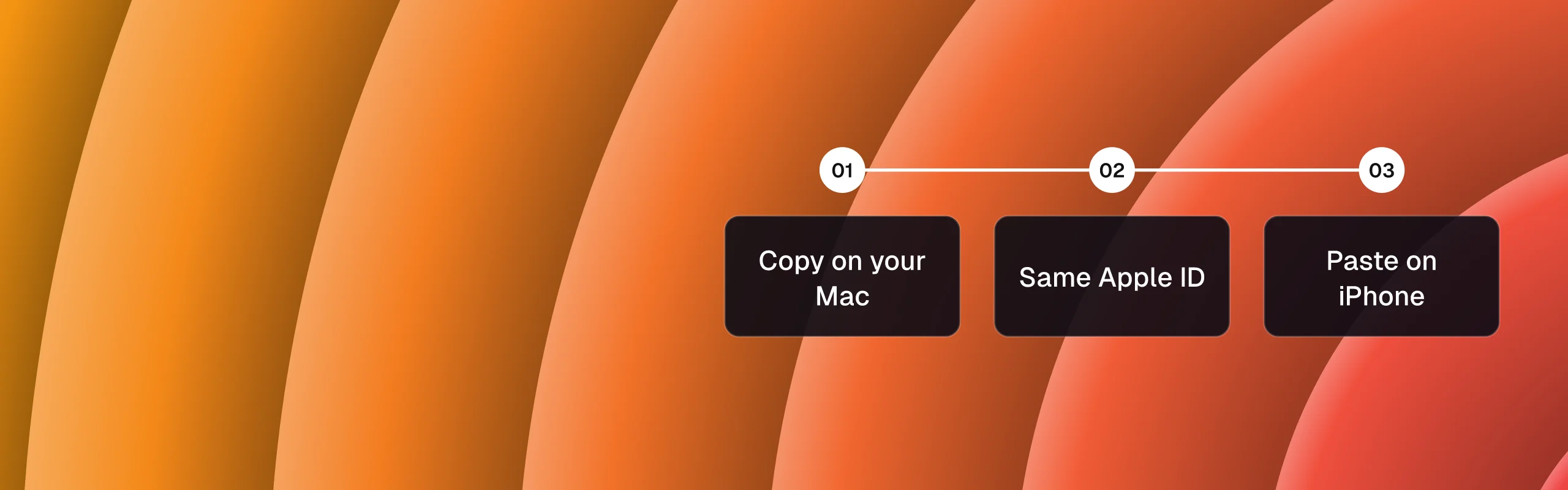
Universal Clipboard is part of Apple's Continuity features. Copy text, a link, or an image on your Mac, then paste it on your iPhone. It works the other way too.
How to set it up
Both devices need to support Universal Clipboard, be near each other, and be signed in to the same Apple Account. Turn on Wi-Fi and Bluetooth on both devices, then check Handoff:
- Mac: Open System Settings → General → AirDrop & Continuity (or AirDrop & Handoff), and turn on Allow Handoff between this Mac and your iCloud devices.
- iPhone: Open Settings → General → AirPlay & Continuity (or AirPlay & Handoff), and turn on Handoff.
Try it with a link
- On your iPhone, copy a link from Safari.
- On your Mac, open a note or a browser address bar and press Command + V.
- Try it in reverse: copy some text on your Mac, then tap and hold in a text field on your iPhone and choose Paste.
There is no separate clipboard app to open. The copied item stays available briefly, or until you copy something else on either device, so paste it soon after copying. You can use the same workflow for text and images.
If it doesn't work
- Check that both devices are signed in to the same Apple Account and have Wi-Fi, Bluetooth, and Handoff turned on.
- Keep the devices near each other, then copy the item again and try pasting.
- Restart both devices and check for software updates. If you use a VPN, check whether it blocks local networking, which can interfere with Continuity.
What about Wi-Fi and battery?
Apple's setup instructions require Wi-Fi and Bluetooth to be turned on for both devices; they don't list a shared Wi-Fi network as a requirement. Battery use varies by device and activity, so there isn't a reliable fixed percentage to expect from leaving Bluetooth on.
Keep clipboard history with Raycast
Universal Clipboard makes the current copied item available on your other device. If you want to find something you copied earlier on your Mac, Raycast's Clipboard History keeps a searchable history. I've also used Raycast to move windows between monitors.
Open Raycast and search for Clipboard History. You can assign it a hotkey in Raycast's settings. By default, Raycast saves an item copied on your iPhone to the Mac's history after you paste it on the Mac. Its Clipboard History settings also offer an option to save Universal Clipboard items as soon as they arrive.
In Raycast's settings, you can choose how long to keep history and exclude apps whose copied content you don't want recorded.
For photos and larger files, AirDrop is often a better fit. For a quick link or snippet, Universal Clipboard means one less message to yourself.