This recipe ties the course together with a two-tab pattern that never loses data.
Starting point (sample export)
| Region | Team | Member | |
|---|---|---|---|
| South | Core | Asha | asha@acme.io |
| South | Core | Raj | raj@acme.io |
| South | Web | Li | li@acme.io |
| North | Web | Maria | maria@acme.io |
Step 1: two tabs
- Keep the export on a tab called
data. Never merge here. - Duplicate it as
report. All merging happens onreport.
Step 2: sort
On report, sort by Region, then Team (Data → Sort range → Advanced range sorting options). By Value only merges consecutive repeats.
Step 3: merge the grouping columns
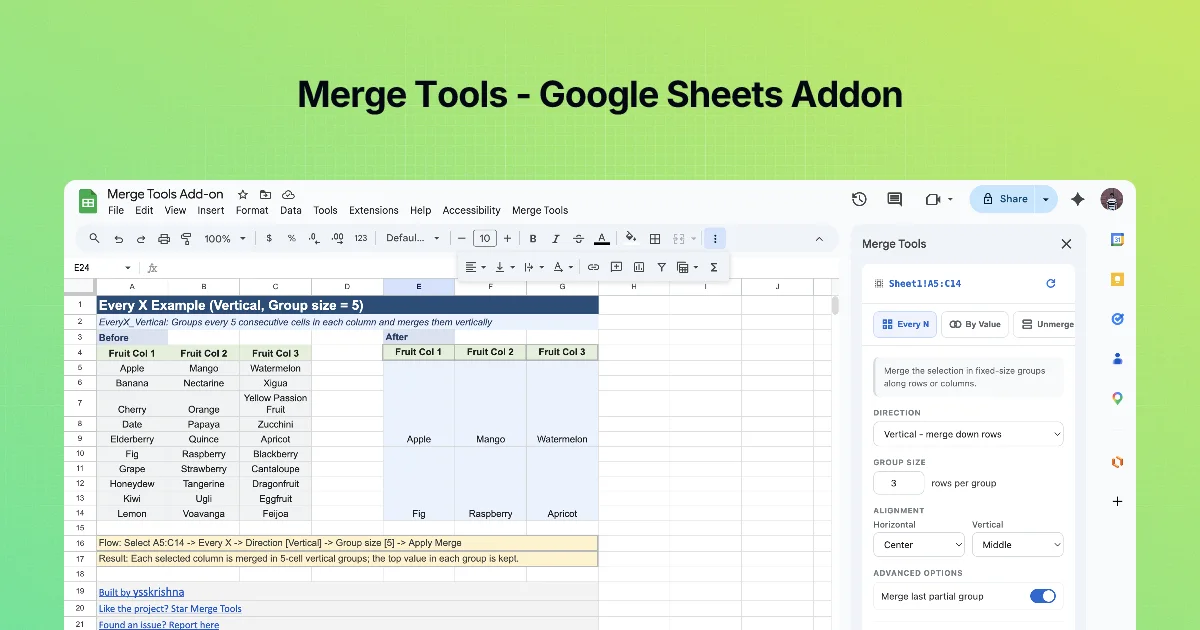
- Select the Region column (A2:A5). By Value, vertical, Merge repeated values, Apply Merge. "South" now spans three rows.
- Team is nested inside Region, so merge it one region at a time: select B2:B4 (South's teams), By Value, Merge repeated values, Group by Each column on its own, Apply Merge. "Core" spans two rows; "Web" stays one.
- Repeat for North (B5). Selecting per region matters: if you selected B2:B5 at once, South's "Web" (row 4) and North's "Web" (row 5) are consecutive and would merge across the region boundary.
"All columns follow the first" is not right here: it would make Team copy Region's three-row block and hide the Core/Web split. Use it for columns that belong to the same record, like Team and Team lead (chapter 3).
Step 4: a contact cell per team (optional)
To show each team's emails in one cell instead of one per row, add a column that lists the team's emails, select the email cells of one team, and use Concat with a semicolon separator and Skip empty cells, so the cell can be pasted into an email "To" field. Repeat per team.
Step 5: format and share
Center/middle alignment on merged cells, freeze the header row, and share or print report.
Step 6: when someone needs the data
Point them to data. If only report exists (someone deleted data), duplicate report, then Unmerge with Copy merged value to every cell on. Concatenated cells stay joined; split them with Data → Split text to columns using the same separator.
Checklist
-
datatab: unmerged, sortable, the source of truth -
reporttab: sorted before By Value - Group by "All columns follow the first" for related columns
- Concat only where people need joined values
- Recovery path tested: Unmerge + fill on a copy
Why this order of steps
Each step protects the next one:
| Step | What breaks if you skip or reorder it |
|---|---|
| Two tabs (data + report) | Merges in the data tab break lookups, pivots and future sorting |
| Sort before merging | Sheets will not sort ranges containing merged cells, so you cannot fix the order later without unmerging |
| Merge Region, then Team per region | Merging Team across the whole column joins teams from neighbouring regions |
| Format last | Borders and alignment applied before a merge are partly lost on the merged cells |
Keeping the report fresh
Most reports are rebuilt every week or month. Two ways to keep it cheap:
- Rebuild from scratch. Paste the new export into the data tab, copy it to a fresh report tab, sort, merge, format. With the add-on this is a few minutes, and nothing stale survives.
- Formula-fed report. Point the report tab at the data with a formula such as
=SORT(Data!A2:D). Formulas spill into cells and cannot be merged over, so this route only works if you drop the merges and use formatting (borders and bold first-of-group labels) instead.
For a shared, read-only report, option 1 gives the cleanest result. For a live dashboard, option 2 is better, and Merge Tools is the wrong tool there.
Hand-off note
Add a short note at the top of the report tab: where the data comes from, when it was last rebuilt, and "Do not sort this tab; use the Data tab". Readers who try to filter a merged report otherwise get an error and assume the file is broken.
Quick check
-
Why sort before By Value?Only consecutive repeats merge.
-
Which tab is never merged?The data tab.
-
How do you split a concatenated cell back into columns?Data → Split text to columns with the same separator.