

ysskrishna logoysskrishna
Google Sheets Text Power Tools logo

Google Sheets Text Power Tools

Fix messy sheet text in place. Case, trim, strip, and extract without leaving the grid.

Gallery image 1
Gallery image 2
Gallery image 3
Gallery image 4
Gallery image 5
Gallery image 6
Built with
Google Workspace Add-ons
Google Sheets Text Power Tools
Text & Data Conversion
Google Sheets
Google Apps Script
JavaScript
Details
FreeCreated May 12, 2026Updated November 12, 2026
Share this product

Your import looks fine until VLOOKUP says no

The names match. The SKUs look identical. One column still returns #N/A because a space you cannot see sits at the end of a cell. Elsewhere, one cell holds three emails, a URL, and notes from a form export. You start adding helper columns and TRIM formulas, or you copy blocks out to another tool and paste back, hoping nothing shifts.

Text Power Tools is a sidebar that cleans and reshapes the selection you already have, still inside Google Sheets.

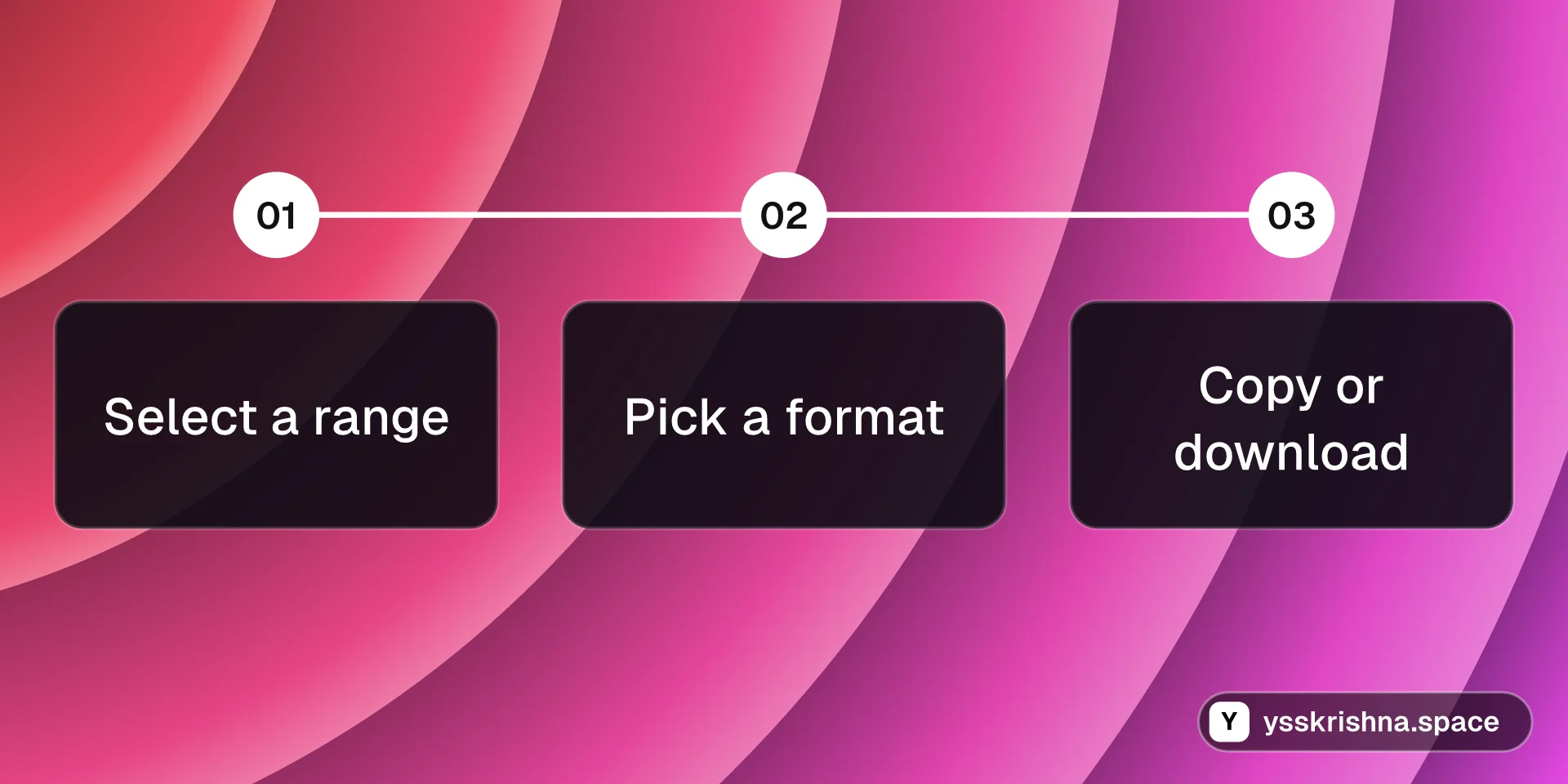
Select the range. Pick the tab. Move on.

What you get

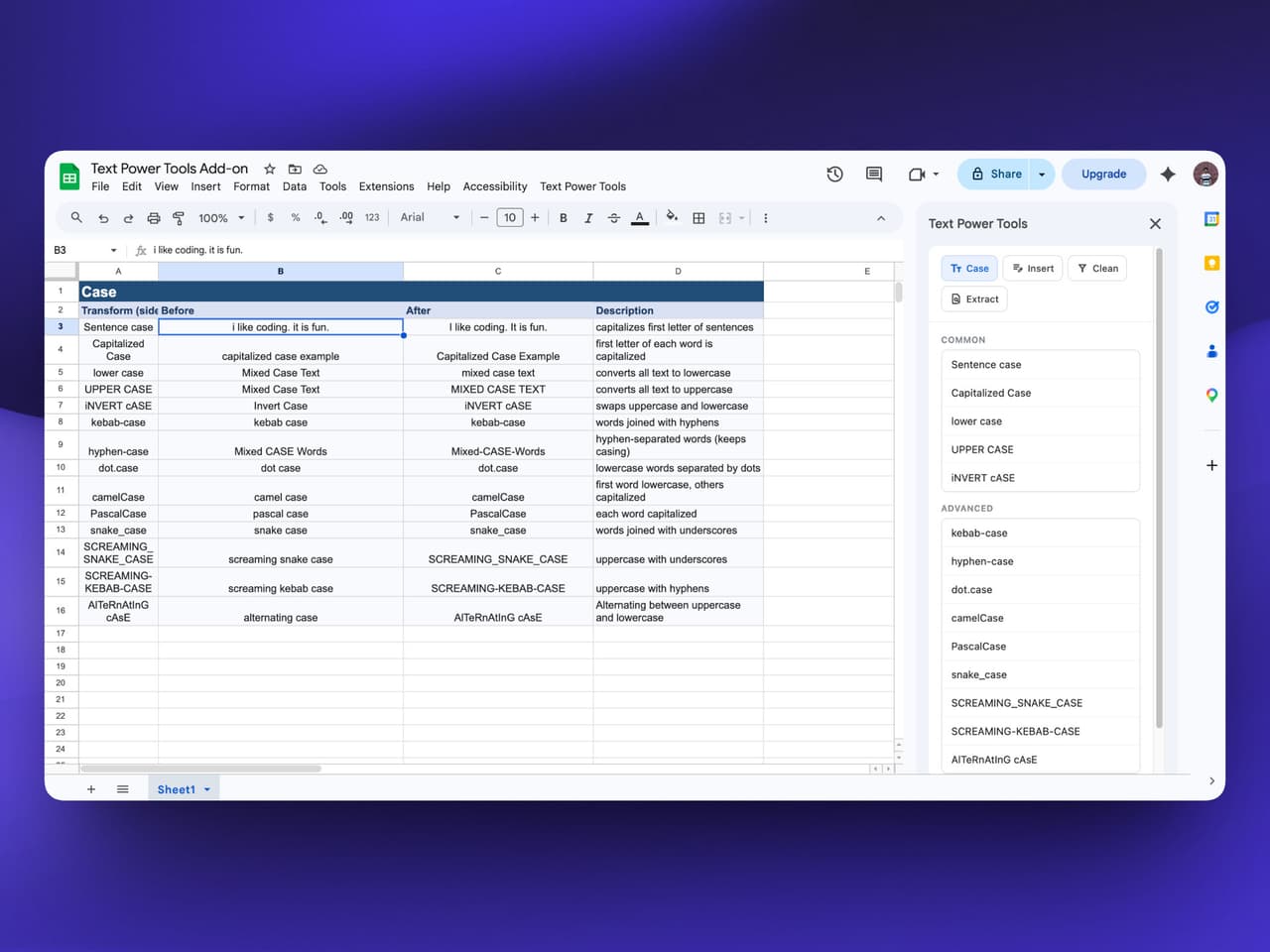
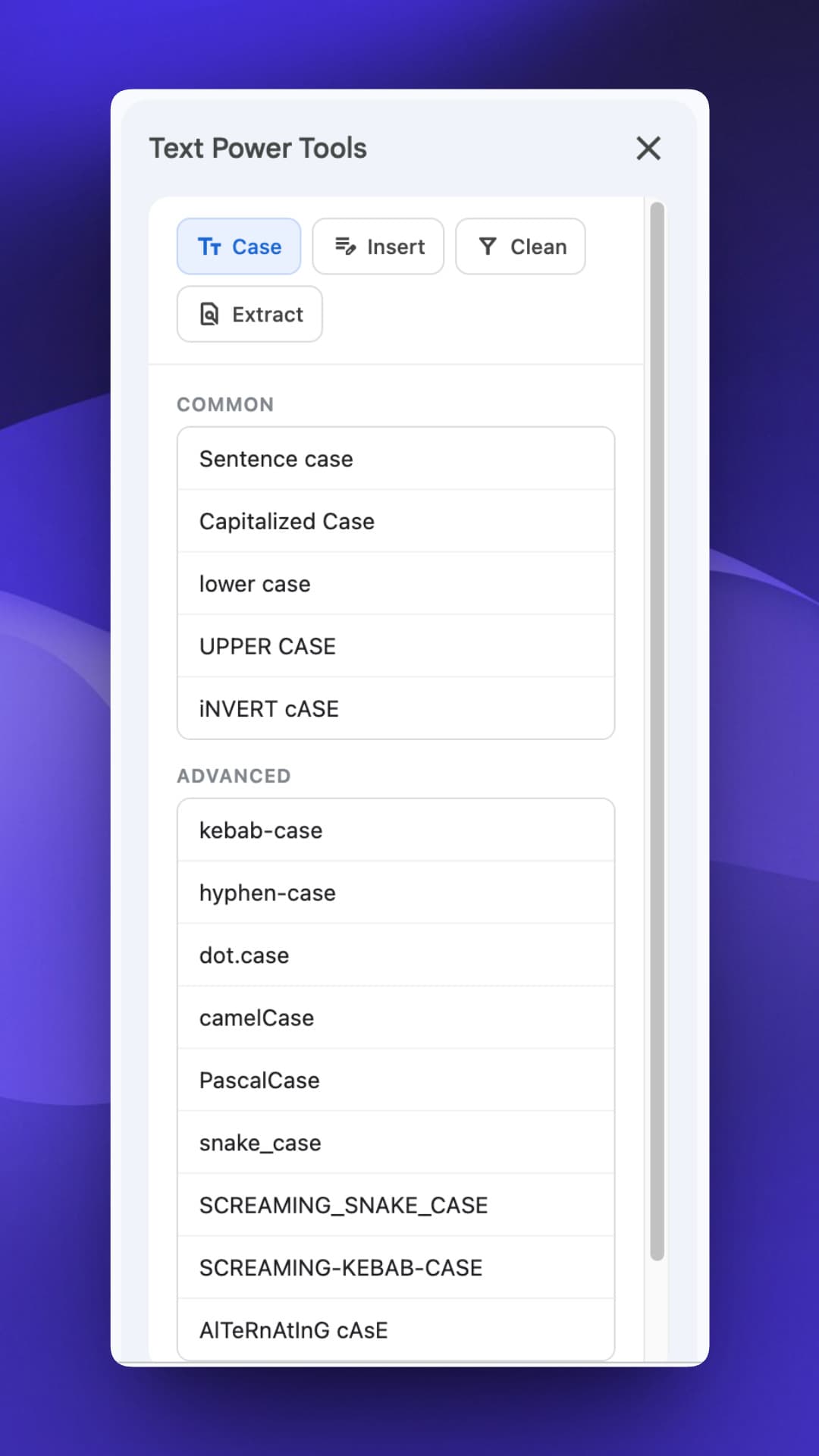
  • Case fixes that go past UPPER and lower. Sentence and title case for lists, plus programmer-style camelCase, PascalCase, snake_case, kebab-case, and related variants when the next system cares about separators.
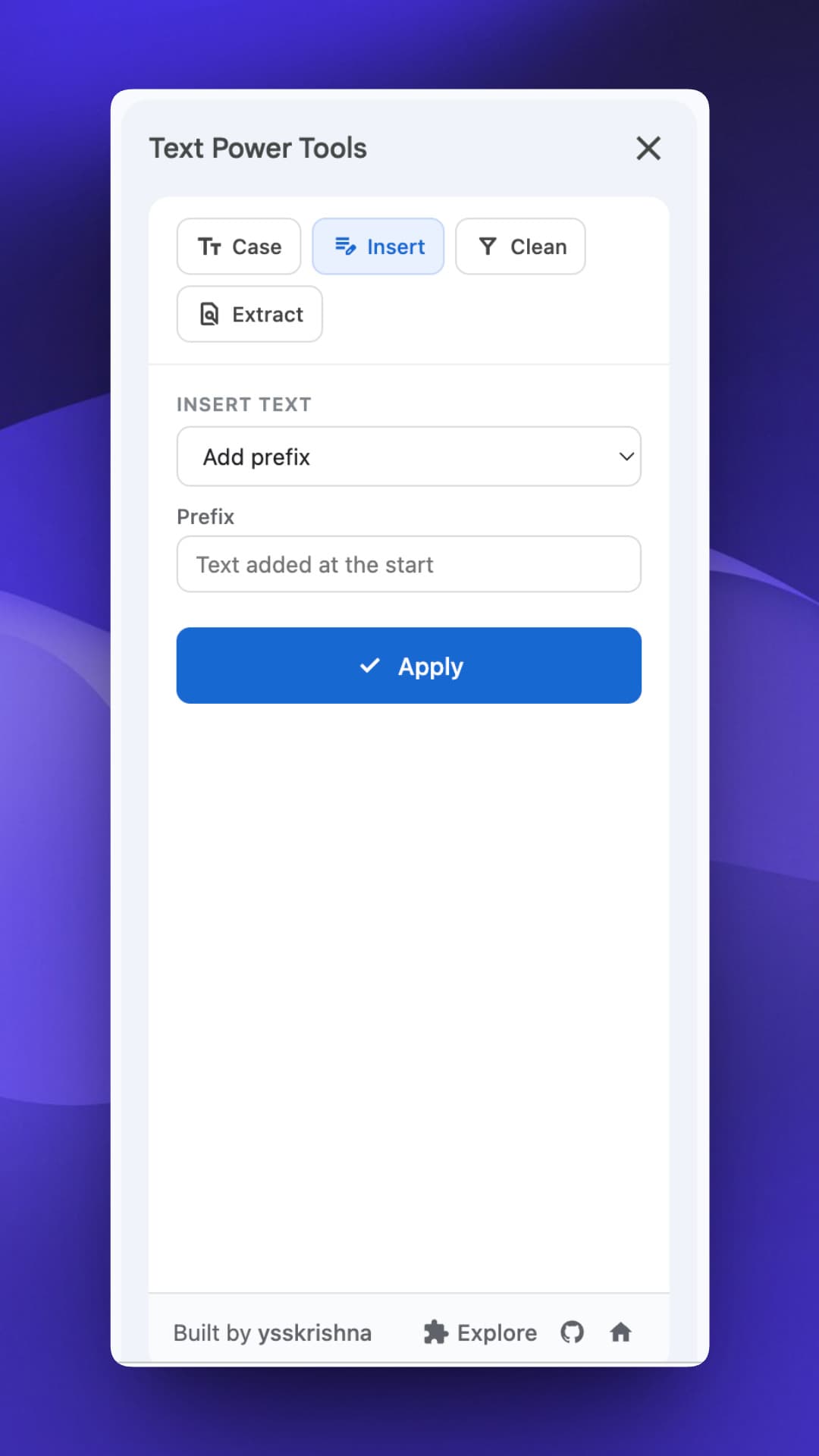
  • Bulk prefix, suffix, or insert at a position without writing formulas down the column.
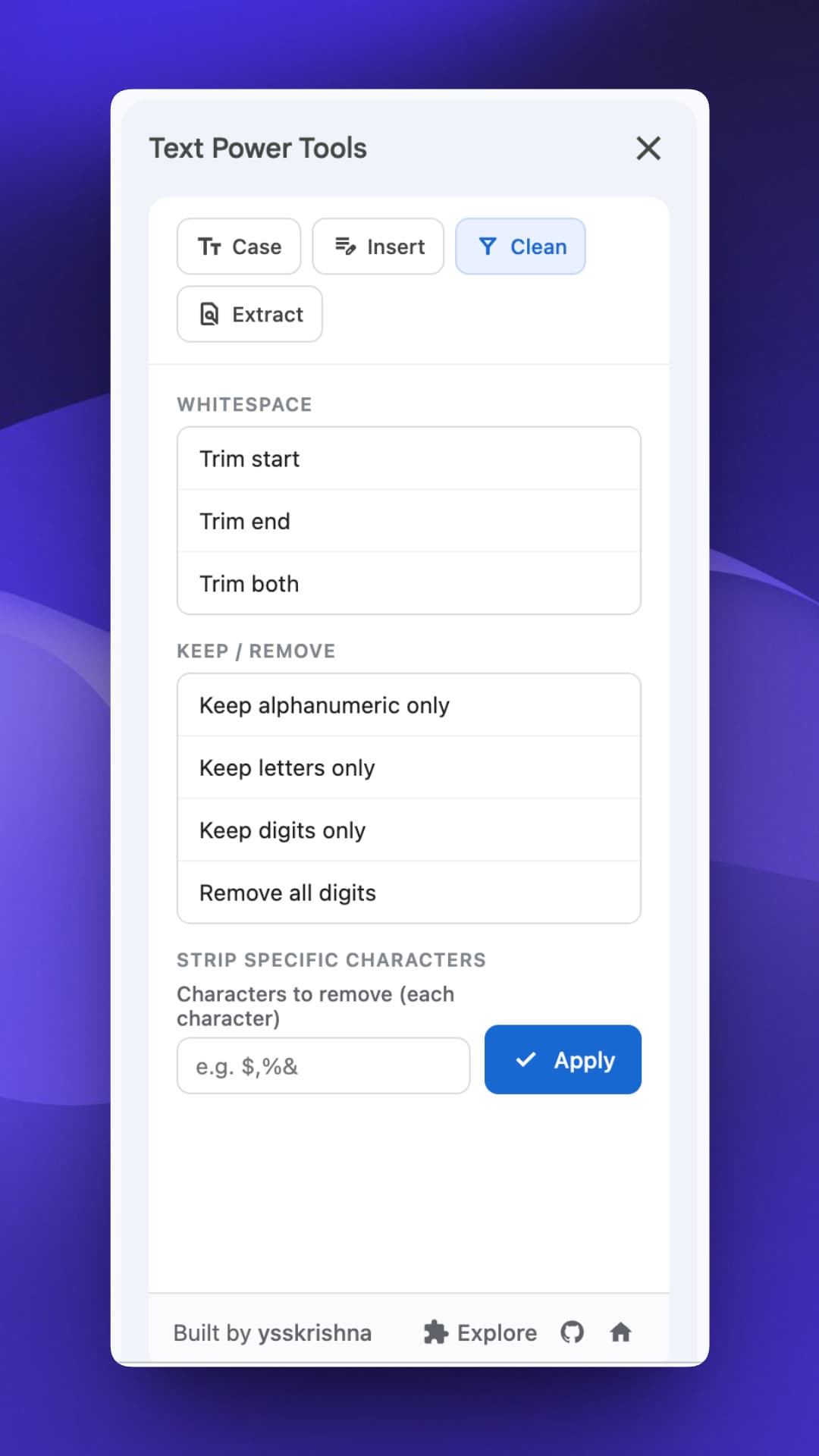
  • Trim and character filters on the active selection: trim ends, keep letters or digits only, or strip every occurrence of symbols you list.
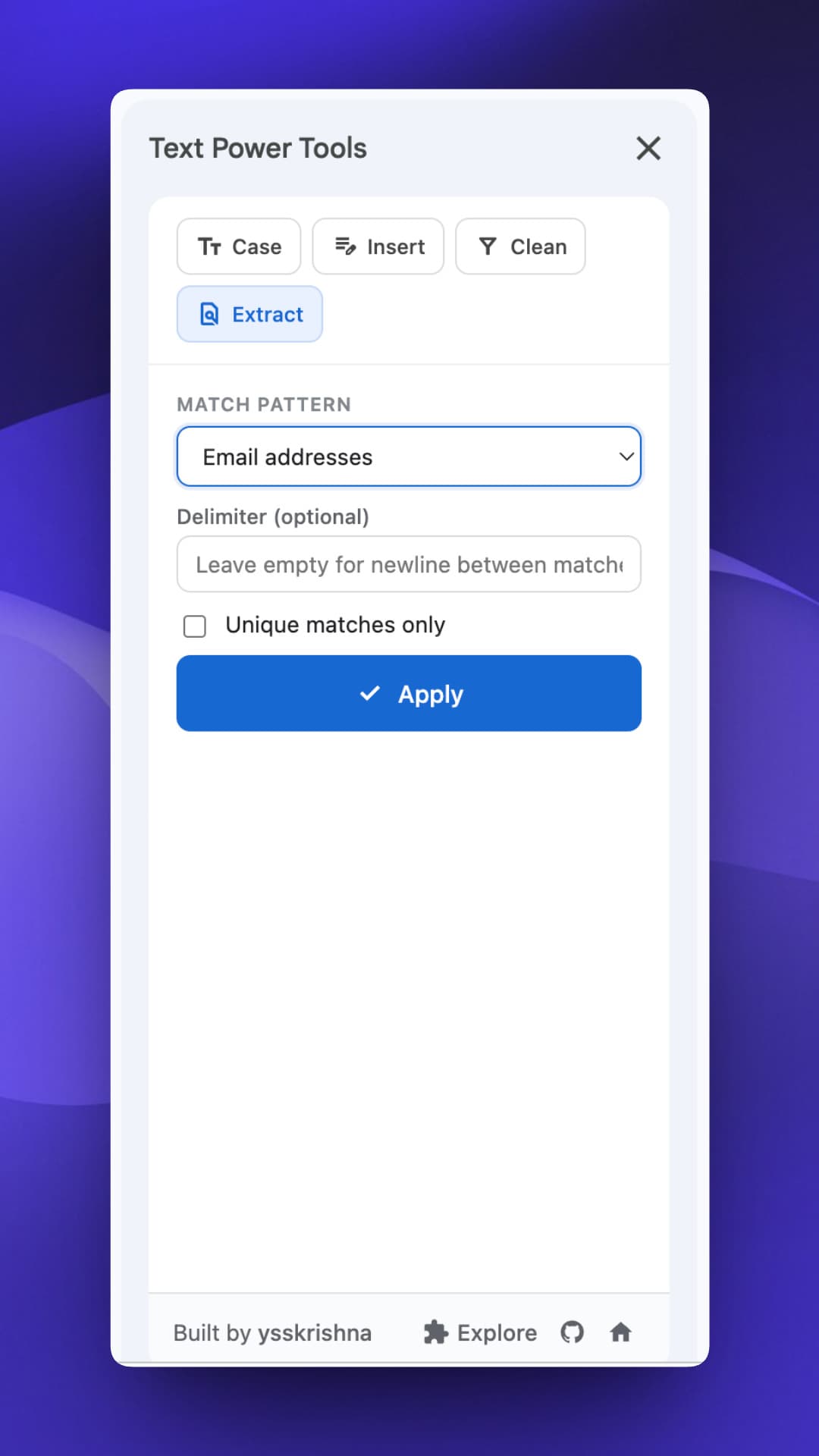
  • Extract presets for emails, http and https URLs, phone numbers, hashtags, mentions, common date shapes, and 24-hour time, with optional custom regex and a join delimiter.
  • What you see is what changes. Transforms use each cell's displayed text and write results back into those cells.
  • Free from Google Workspace Marketplace. Install once, open Text Power Tools → Start from the menu when you need it.

Picture your Monday

For example: marketing hands you a contact column where every cell mixes two emails and a note. You select the range, open Extract, choose emails, and apply. Next column: product codes in mixed case for an API that wants snake_case. Select, Case, apply. No export. No helper sheet.

Ready to try it?

Keep exploring

Frequently asked questions

How do I change text to camelCase or snake_case in Google Sheets without formulas?

Built-in functions handle simple upper, lower, and proper case on space-separated words. Programmer-style names need token rules across spaces, underscores, hyphens, and camel boundaries. Text Power Tools **Case** tab applies those styles to your current selection in one click.

How do I extract all emails from a cell in Google Sheets?

Use the **Extract** tab and choose the email preset. It finds addresses inside each selected cell and replaces the cell contents with the matches joined by your delimiter (or newlines if you leave the delimiter empty). The same tab has presets for http and https URLs, phone numbers, hashtags, mentions, common date shapes, and 24-hour time. Built-in patterns cover most jobs; custom regex is optional, with a join delimiter and **unique matches only** when repeats would clutter the result.

Why not just use TRIM and SUBSTITUTE formulas?

For one column, formulas work. They get heavy when you need many styles, strip a custom symbol list, or pull URLs and phones from messy notes across a large range. The sidebar keeps the same steps repeatable: select, tab, apply, next range.

Does it edit formulas or the values on screen?

It transforms each cell's **displayed text** (what you see in the grid) and writes the result back into the active selection. Plan around that if a cell must keep a live formula.

How do I add a prefix or suffix to many cells at once?

Open **Insert**, pick prefix, suffix, both, or insert at a 1-based character position, then apply to the selection. Position 1 is before the first character; length plus one appends at the end.

Is it free?

Yes. The product is listed as **Free** on this site, and the add-on installs from Google Workspace Marketplace at no charge.

Where do date extracts land on accuracy?

Date presets are **pattern-based**, not full calendar validation. Use them to pull likely date strings; double-check anything that must be a real calendar date.

Continue exploring

CourseCover image for Text Power Tools for Google Sheets: Clean, Change Case and Extract Text

Text Power Tools for Google Sheets: Clean, Change Case and Extract Text

Fix messy text in Google Sheets without formulas: trim spaces, change case and naming styles, add prefixes, and extract emails, URLs, phones and dates.

Google Sheets Text Power Tools
Google Sheets
+1

7 chapters · 17 min

ProductGoogle WorkspaceGoogle Sheets Table Converter

Google Sheets Table Converter

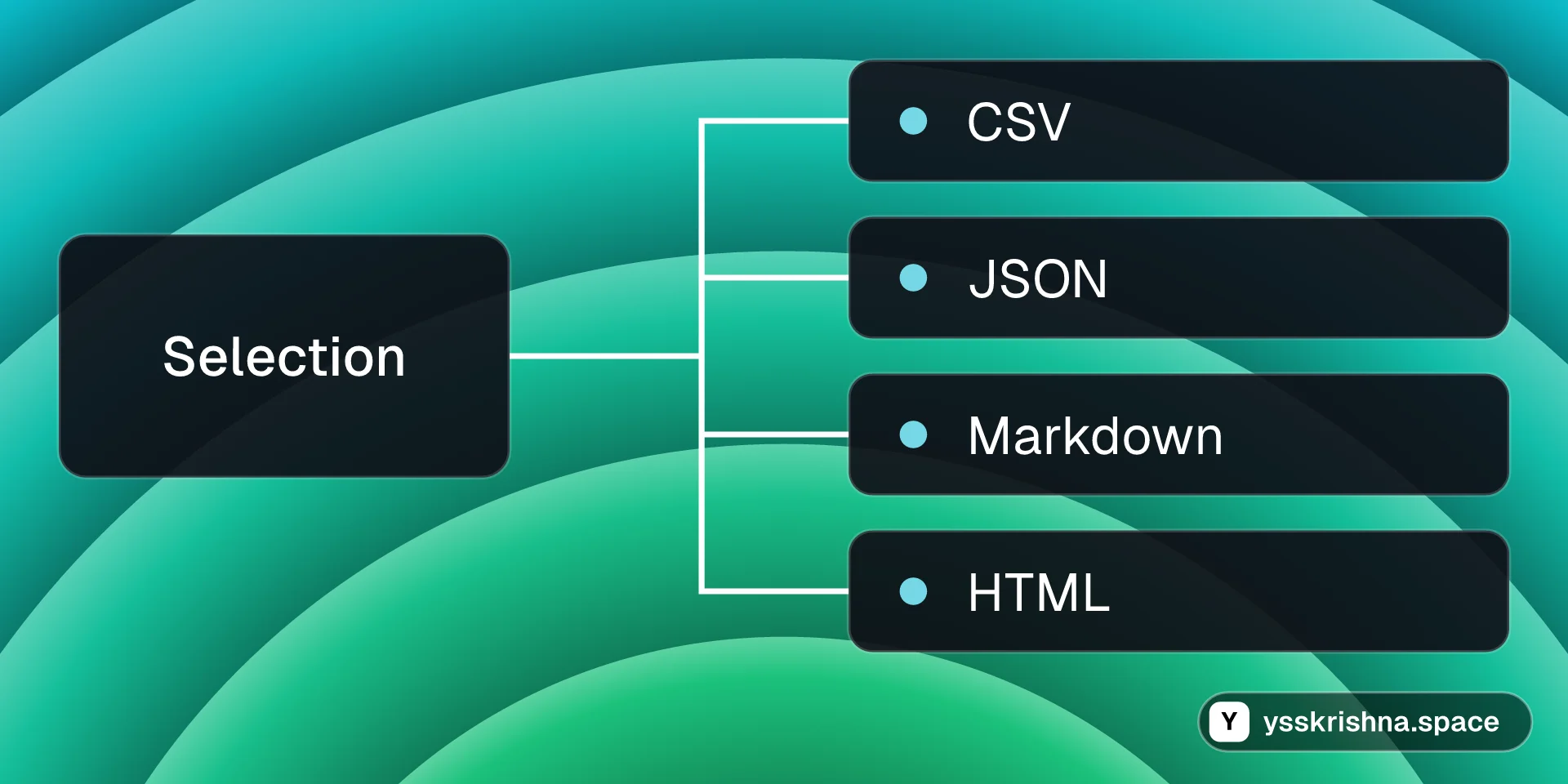
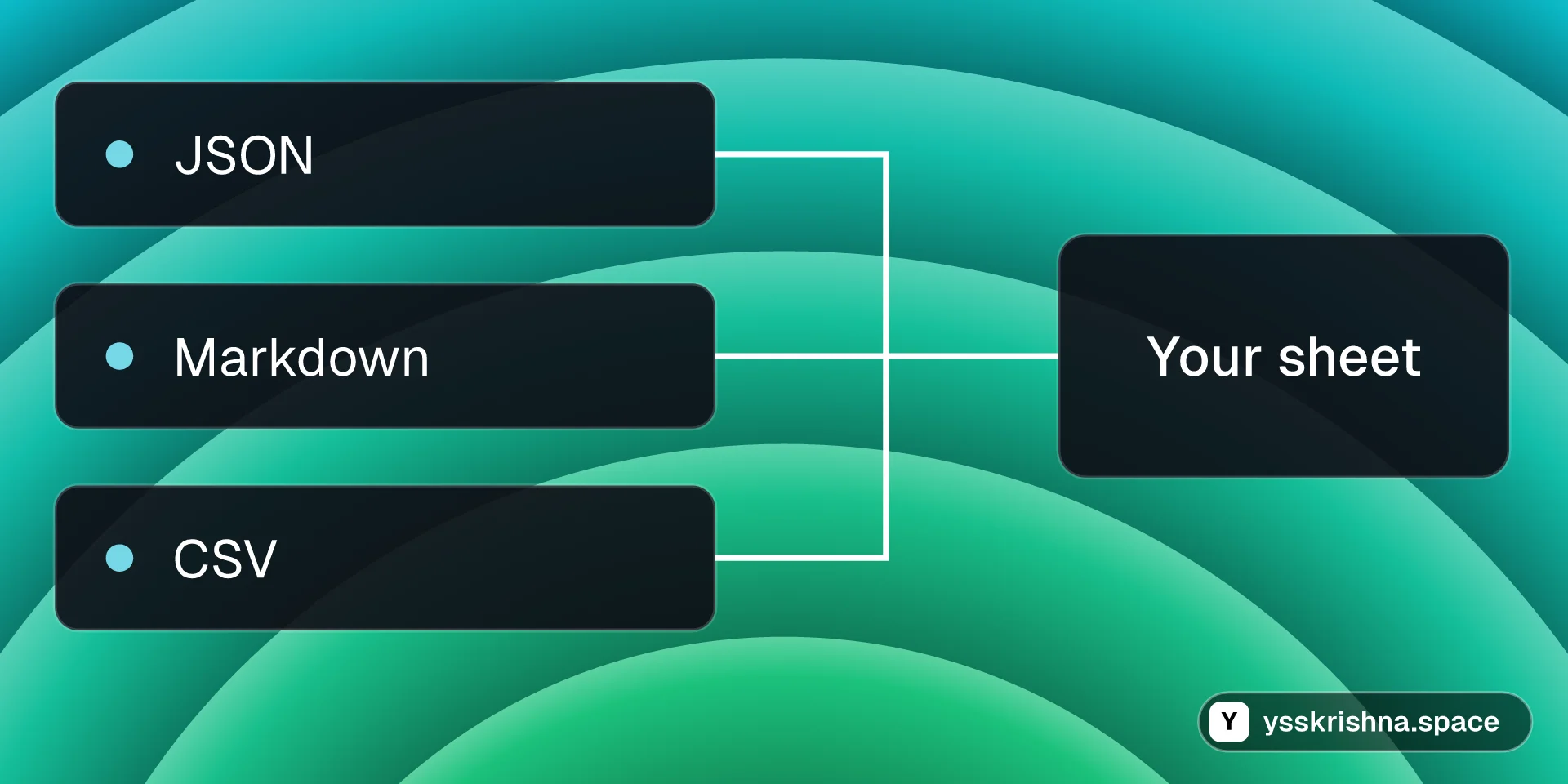
Pipe tables, JSON, CSV, or HTML in and out of Sheets, without leaving the grid you are already in.
Google Sheets Table Converter
Markdown & Docs
+5
CourseCover image for Table Converter for Google Sheets: Import and Export Markdown, JSON, HTML and CSV

Table Converter for Google Sheets: Import and Export Markdown, JSON, HTML and CSV

Import Markdown, JSON, HTML and CSV tables into Google Sheets without broken columns, and export any range as clean Markdown, JSON, HTML or CSV.

Google Sheets Table Converter
Google Sheets
+1

6 chapters · 12 min

BlogCover image for Import JSON, Markdown, HTML & CSV Tables into Google Sheets Without Breaking Data

Import JSON, Markdown, HTML & CSV Tables into Google Sheets Without Breaking Data

Google Sheets Table Converter
Google Workspace Add-ons
+3
2 min read
ToolCover image for Unix Timestamp Converter

Unix Timestamp Converter

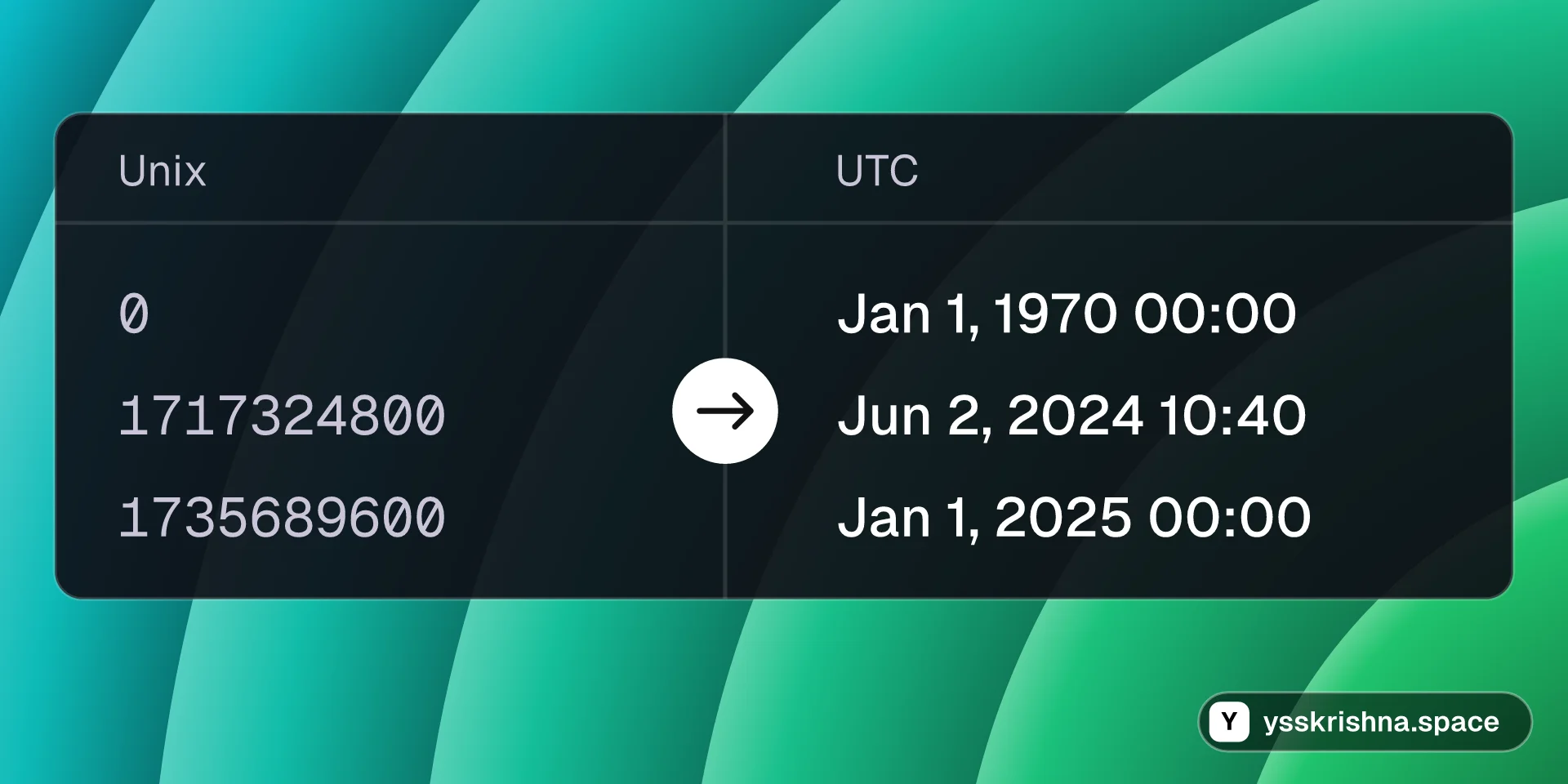
Epoch converter for Unix seconds/milliseconds to date and date to epoch.

Scheduling
Text & Data Conversion
ProductGoogle WorkspaceGoogle Sheets Tab Manager

Google Sheets Tab Manager

Your workbook outgrew the tab bar. Clean it up in batches.
Google Sheets Tab Manager
Google Workspace Add-ons
+3