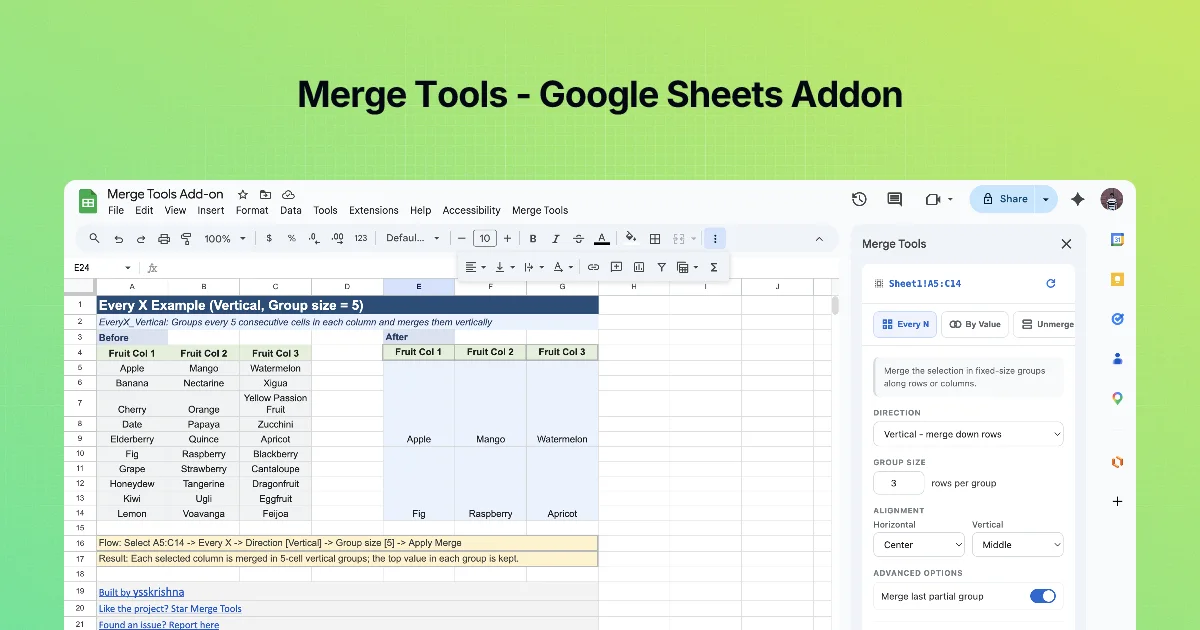
Concat is the merge that keeps everything. The sidebar: "Join cell values with a separator, then merge into one cell."
Options
- DIRECTION: e.g. "Vertical - merge down columns" (join a column's cells) or horizontal (join a row's cells).
- SEPARATOR: Comma ( , ), semicolon, pipe (|), dash, newline, or a custom character (from the listing).
- ALIGNMENT.
- ADVANCED OPTIONS: Trim whitespace from each value, Skip empty cells (both shown switched on in the listing's screenshot).
- Button: Concatenate & Merge.
Example
Selection A2:A4, vertical, separator comma, trim and skip on (sample data):
| Before | After |
|---|---|
asha@acme.io | asha@acme.io, raj@acme.io (one merged cell spanning A2:A4) |
| (blank) | |
raj@acme.io |
Without Skip empty cells you would get a double separator for the blank. Without Trim whitespace the stray spaces stay inside the joined text.
Choosing a separator
| Separator | Good for |
|---|---|
| Comma | Lists people read; CSV-style values |
| Semicolon | Email "To" fields (Outlook) |
| Pipe | Values that contain commas |
| Newline | A readable stacked list inside one cell |
| Custom | / for paths, · for labels |
Concat versus a formula
=TEXTJOIN(", ", TRUE, A2:A4) gives the same joined text in another cell and updates live. Use the formula when the source changes; use Concat when you want the final layout in place, merged, without a helper column.
Horizontal concat
Set DIRECTION to horizontal to join across a row, for example first name, middle name and last name into one merged cell with a space as a custom separator. The Concat_Horizontal tab in the examples workbook shows it.
Step by step: stack a project's tags
- In A2:A5 put tags (sample):
sheets,free, (blank),add-on. - Select A2:A5. Open Concat.
- DIRECTION vertical, SEPARATOR newline, both advanced toggles on.
- Concatenate & Merge. One cell lists the three tags on separate lines.
Practice: one cell per order
Sample data, one row per item, with a stray blank and a padded value:
| Order | Item |
|---|---|
| 1001 | Mouse |
| 1001 | Keyboard |
| 1001 | |
| 1002 | Monitor |
- Select B2:B4 (order 1001's items).
- Open Concat. Set DIRECTION to vertical and SEPARATOR to Comma.
- Turn on Trim whitespace from each value and Skip empty cells.
- Click Concatenate & Merge.
Expected result: B2:B4 becomes a single merged cell containing Mouse, Keyboard. Without the two toggles you would get Mouse, Keyboard , with doubled spaces and a trailing separator for the blank row.
Repeat for each order. For long lists, sort by Order first so each order's rows are contiguous, then work down the sheet one order at a time.
Choosing between Concat and a formula, in practice
Use the add-on when the result is a finished, static cell for a report you are about to share. Use =TEXTJOIN(", ", TRUE, B2:B4) when the source rows will keep changing and the joined cell must update itself; the TRUE argument skips empty cells, like the toggle. A formula result cannot sit in a merged cell spanning its own input range, so with formulas you write the result into a new column instead.
Common mistakes
- Concatenating across different orders because the selection crossed a boundary. Check the range shown in the sidebar header before you click.
- Choosing a separator that already appears in the values (commas inside "Acme, Inc."), which makes the joined text impossible to split back later. A semicolon or a new line is safer for free text.
- Expecting to undo it with Unmerge alone: unmerging gives you the joined text in the top cell, not the original separate values. Keep the source tab, or use Undo straight away.
Quick check
-
Which option prevents ", ," in the result?Skip empty cells.
-
Values contain commas. Which separator?Pipe (or another character that doesn't appear in the values).
-
The source updates daily. Concat or TEXTJOIN?TEXTJOIN, so the result stays live.