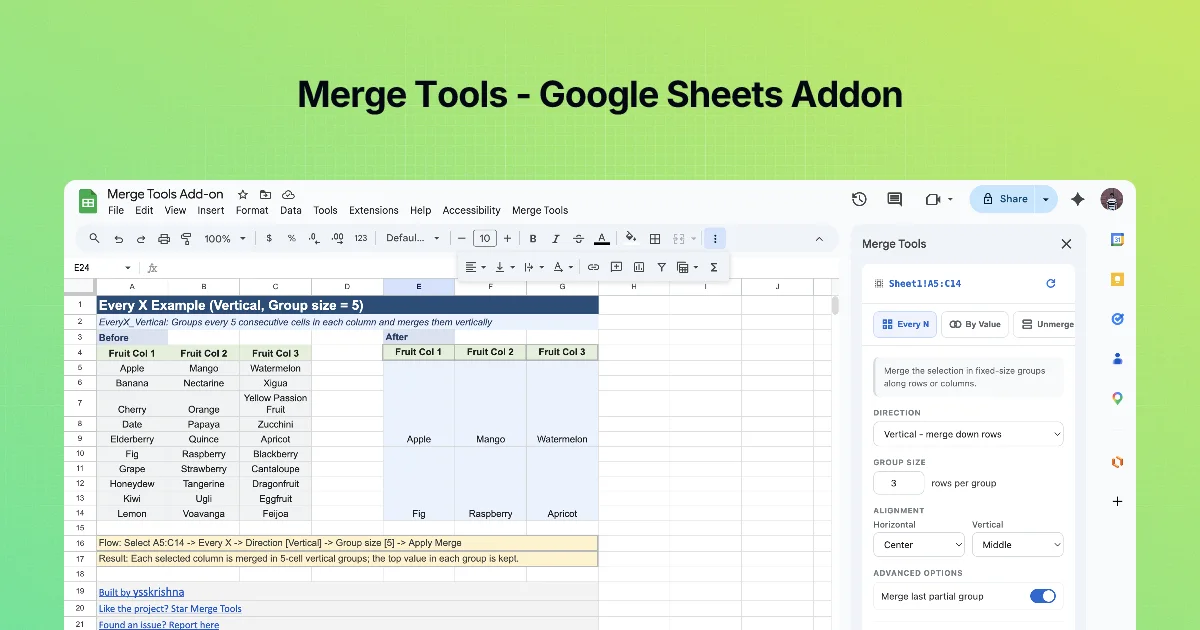
By Value is the mode for real data, where group sizes vary. The sidebar describes it as: "Merge repeated values along a column or row, or merge each value with the empty cells below or to the right."
Options
- DIRECTION: e.g. "Vertical - merge down columns".
- MODE: Merge repeated values, or Merge value with empty cells.
- ALIGNMENT: horizontal and vertical.
- ADVANCED OPTIONS → Group by: Each column on its own or All columns follow the first.
- Button: Apply Merge.
Mode 1: merge repeated values
Consecutive cells with the same value become one merged cell.
| Before (sample) | After |
|---|---|
| Core | Core (spans 3 rows) |
| Core | |
| Core | |
| Web | Web (spans 2 rows) |
| Web | |
| Mobile | Mobile |
Only consecutive repeats merge. Sort the data by that column first if the same value appears in separate places. Because the merged cells all held the same value, nothing is lost.
Mode 2: merge value with empty cells
A value extends over the blank cells after it, until the next non-empty cell. This fits exports that already "look merged" by leaving repeats blank:
| Before | After |
|---|---|
| Core | Core (spans 3 rows) |
| (blank) | |
| (blank) | |
| Web | Web (spans 2 rows) |
| (blank) |
The examples workbook's ByValue_Blanks tab shows this layout.
Group by: multi-column ranges
When the selection has several columns (say Team in A, Project in B):
| Option | Behaviour (from the listing) | Use when |
|---|---|---|
| Each column on its own | Every column decides its merge pattern independently | Columns are unrelated |
| All columns follow the first | The first column sets the pattern; the others mirror it exactly | Columns describe the same record, like Team and Team lead |
"Follow the first" prevents a confusing result where Project merges across two teams just because the value repeats at the boundary.
Step by step: a team roster
- Columns: A
Team, BLead, CMember(sample data). Sort by Team. - Select A2:B20 (Team and Lead only, not Member).
- By Value, DIRECTION vertical, MODE Merge repeated values, Group by All columns follow the first.
- Apply Merge. Each team and its lead span the team's member rows.
Practice: repeated values versus blanks
Two columns that look similar on screen need different modes:
| Row | Column A (repeated) | Column C (blanks) |
|---|---|---|
| 2 | Finance | Finance |
| 3 | Finance | |
| 4 | Finance | |
| 5 | Sales | Sales |
| 6 | Sales |
- Select A2:A6, open By Value, choose MODE Merge repeated values, click Apply Merge. Expected: A2:A4 becomes one "Finance" cell, A5:A6 one "Sales" cell.
- Select C2:C6 and choose the mode that merges each value with the empty cells below it. Expected: the same two blocks, because each label is followed by blanks.
If you run "Merge repeated values" on column C instead, nothing useful happens: no two neighbouring cells hold the same value, so there is nothing to merge. That is the quickest way to tell which mode a column needs: repeated text means the first mode, a label followed by gaps means the second.
Watch for look-alike values
"Finance" and "Finance " (with a trailing space) are different values, so a repeated-values merge stops at the row with the space and you get two Finance blocks. The same happens with "finance" versus "Finance". Clean the column first: the Text Power Tools add-on's Trim both and case options, or a helper column with =TRIM(A2), fix this in seconds. See Trim and clean.
Common mistakes
- Merging an unsorted column. Repeated values only merge when they are next to each other, so sort by the column first.
- Using "Each column on its own" for columns that describe the same record (team and team lead). The lead column would then merge on its own pattern, and if two teams share a lead the blocks no longer line up with the team blocks.
Quick check
-
"Core" appears in rows 2-4 and again in row 9. What merges?Rows 2-4 only. Sort first to bring repeats together.
-
Your export leaves repeated values blank. Which mode?Merge value with empty cells.
-
When do you pick "All columns follow the first"?When the other columns belong to the same record as the first column.