Run this on the first working day of each month, on any workbook that gains tabs over time.
The routine
- Back up. File → Make a copy, or note the time so you can find it in version history.
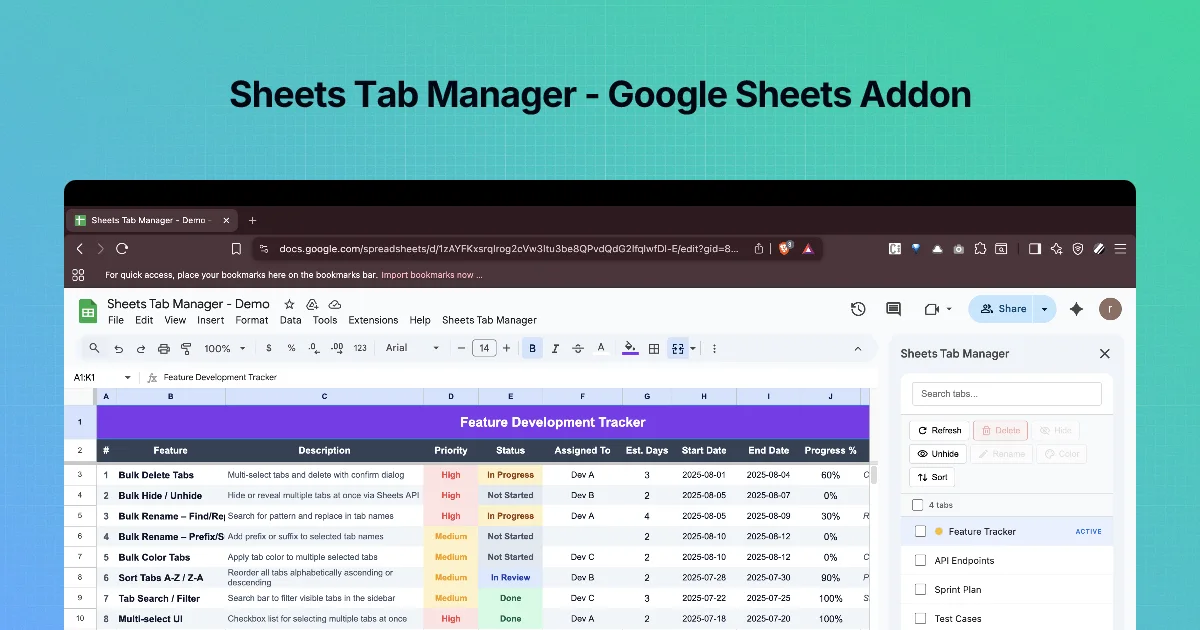
- Unhide everything. Sidebar → tick all HIDDEN tabs → Unhide. Nothing escapes review.
- Delete scratch tabs. Search
Copy of, thenSheet. Tick the ones you don't need. Delete, read the dialog, confirm. Check for#REF!errors afterwards (chapter 2). - Archive last month's working tabs. Tick them → Rename with prefix
ARCHIVE -→ Color grey → Hide. - Fix names. Search for anything that breaks your convention; Rename with find and replace.
- Colour new tabs by your scheme (chapter 5).
- Sort A → Z if your names are designed for it.
- Leave the summary active: click the summary tab so it is what people see first.
When to split the file instead
If the archive keeps growing, move archived tabs into a separate "Archive 2025" spreadsheet: in each tab, right-click → Copy to → Existing spreadsheet, then delete it from the live file. Big workbooks load and recalculate more slowly, and a lean live file is easier to share.
Checklist to copy into your README tab
Monthly tab clean-up
[ ] Backup / note time
[ ] Unhide all, review
[ ] Delete scratch (Copy of…, SheetN), check #REF!
[ ] Archive last month: prefix "ARCHIVE - ", grey, hide
[ ] Rename to convention
[ ] Colour new tabs
[ ] Sort A→Z
[ ] Summary tab active
A worked month-end
Here is the routine applied to a real-looking file at the start of a month. Before:
| Tab | Action this month |
|---|---|
0 README | Update "last tidied" date |
2026-10 Sales | Keep visible (current) |
2026-09 Sales | Hide |
2026-08 Sales | Already hidden; leave |
Copy of 2026-10 Sales | Check references, then delete |
Sheet12 | Check, then delete |
9 Lists | Leave hidden |
Steps in the sidebar, roughly five minutes:
- Click Refresh so the list matches the file.
- Search
Copy of, thenSheet, ticking the scratch tabs. Search formulas for their names (Edit → Find and replace), then Delete and read the dialog list. - Search
2026-09, tick it, click Hide. - Add the new month: duplicate the current tab in Sheets, then use Rename to change
Copy of 2026-10 Salesto2026-11 Sales. - Click Sort (A → Z) so the new month lands in order.
- Update the README tab.
Make it a habit
The routine is short because it runs every month. Put a recurring reminder on your calendar for the first working day of the month, and keep the checklist on the README tab so anyone covering for you can run it. If the routine starts taking longer than ten minutes, that is a sign the file is doing too much; see "When to split the file instead" above.
What you learned in this course
You can now find tabs quickly with search, delete in bulk without breaking formulas, hide and unhide sets of tabs, rename with find and replace, and use colour, names and sorting together so a large file stays navigable. Each action works on a selection, so the habit that ties them together is the same: search, tick, read what will happen, then apply.
Troubleshooting
| Symptom | Likely cause | Fix |
|---|---|---|
| The sidebar list does not show a tab you just added | The list was loaded before the change | Click Refresh |
#REF! errors appear after the clean-up | A deleted tab was still referenced | Undo, or copy the tab back from version history, then repoint the formula |
| A colleague says "the Sept tab is gone" | It was hidden, not deleted | Unhide it from the sidebar, or point them to View → Hidden sheets |
| Sort put README in the middle | Its name does not sort first | Rename it 0 README, then sort again |
| Delete is refused | You selected every visible tab | Leave at least one tab unselected |
Most of these are avoided by reading the confirmation dialog and the preview before applying, which is the habit the whole course is built around.
Quick check
-
Why unhide everything first?So hidden tabs are reviewed too, and nothing is deleted or kept by accident.
-
What three actions archive a tab in this routine?Prefix "ARCHIVE - ", colour grey, hide.
-
When should archived tabs move to another file?When the archive makes the live workbook slow or hard to share.