Tables travel. A Markdown table from a README needs to become a sheet for sorting. An API returns a JSON array you want to filter. A sheet needs to go into a GitHub issue, a Confluence page or a Teams message. Each hop is a chance to break the table.
What goes wrong with plain paste
| You paste | Into | What you get |
|---|---|---|
| A Markdown table | Sheets | Every row in one cell, pipes and dashes included |
| A JSON array | Sheets | One long text cell |
| An HTML table from a page | Sheets | Usually OK, sometimes merged cells, styles and links mixed in |
| CSV with quoted commas | Sheets | Columns split inside quoted values unless you use the import dialog with the right separator |
| A Sheets range | A README | Tab-separated text, not a Markdown table |
You can fix each of these with formulas (SPLIT, REGEXREPLACE, TEXTJOIN) or Apps Script. Table Converter does it from a sidebar.
The sidebar
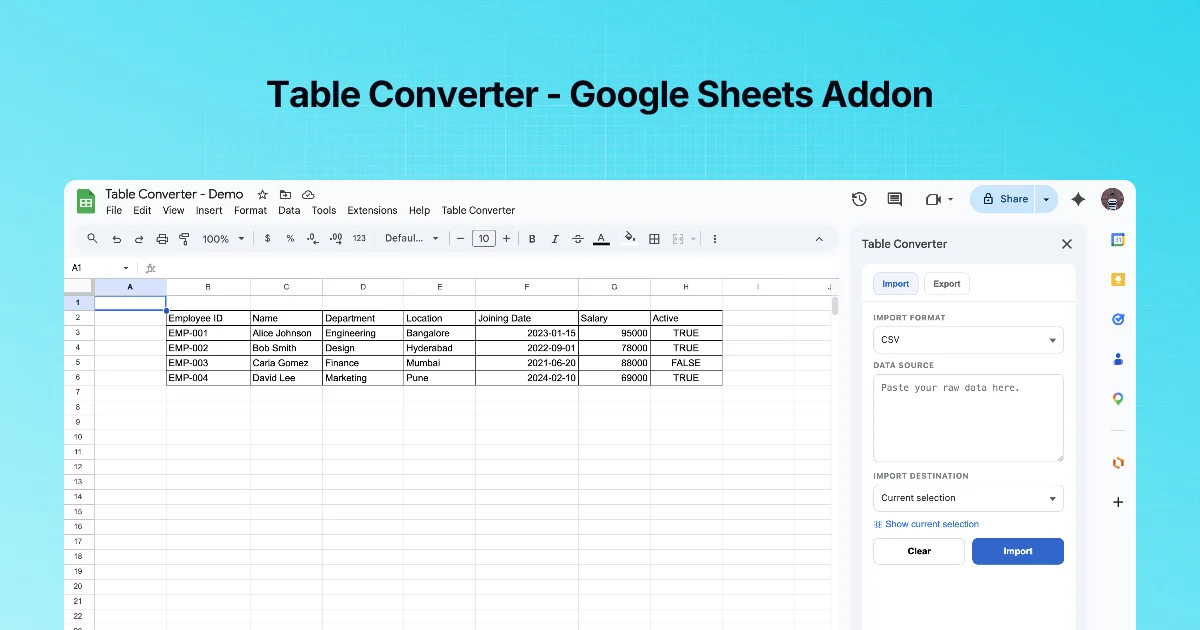
Open Extensions → Table Converter (the path the add-on's posts give). The sidebar has two tabs:
Import
- IMPORT FORMAT: CSV, HTML Table, JSON Array, Markdown Table.
- DATA SOURCE: a text box, "Paste your raw data here."
- IMPORT DESTINATION: current selection, or a new sheet (the listing: "insert at current selection or create a new sheet automatically").
- Show current selection link, Clear and Import buttons.
Export
- Show current selection link.
- EXPORT FORMAT: CSV, JSON, Markdown or HTML.
- Copy (to clipboard) and Export (download as a file).
Choosing the destination
| Choose | When |
|---|---|
| Current selection | You know where the data should go and the area below/right is empty |
| New sheet | You are trying unfamiliar data, or the sheet has a layout you must not overwrite |
The add-on's own advice: use a new sheet when you are experimenting with unfamiliar payloads.
Step by step: a first import
- Copy this Markdown table (sample data):
| Tool | Users | Price |
|---|---|---|
| Text Power Tools | 2K+ | Free |
| Table Converter | 162 | Free |- Open the sidebar → Import. Choose Markdown Table.
- Paste into DATA SOURCE. Set destination to a new sheet.
- Click Import. You should get a 3-column table with a header row.
User counts are from the Marketplace listings at the time of writing.
Practice: see the problem first
Copy this Markdown and paste it straight into cell A1 of an empty sheet with a normal paste (Ctrl/⌘+V):
| Plan | Seats | Price |
|---|---|---|
| Free | 1 | 0 |
| Team | 10 | 120 |
Everything lands in column A, one line per row, pipes included, and the separator line |---|---|---| becomes a row of its own. That is the result the add-on exists to fix. Now clear the sheet and repeat with the add-on: Import tab, Markdown Table, paste into DATA SOURCE, destination A1, Import. You should see three columns and three rows (header plus two), with no separator row.
Quick check
-
What are the four import formats?CSV, HTML Table, JSON Array and Markdown Table.
-
When should you import to a new sheet?When the data is unfamiliar or the current sheet has a layout you must not overwrite.
-
What is the difference between Copy and Export?Copy puts the output on the clipboard; Export downloads it as a file.