Choose Custom regex in Extract's MATCH PATTERN and type your own regular expression. The listing says it is a global match: every match in the cell is returned and joined with your delimiter, exactly like the presets.
Six patterns worth keeping
| Goal | Pattern | Matches in "Order INV-000731 for ₹4,500 on 17-11-2026, ref #A12" |
|---|---|---|
| Invoice numbers | INV-\d{6} | INV-000731 |
| Amounts with separators | \d{1,3}(,\d{3})*(\.\d+)? | 000, 731, 4,500, … (too greedy, see below) |
| Indian-style amount after ₹ | (?<=₹)[\d,]+ | 4,500 |
| Ticket keys | [A-Z]{2,10}-\d+ | INV-000731 |
| Domains from URLs | (?<=://)[^/\s]+ | - (none in this text) |
| Words in caps (acronyms) | \b[A-Z]{2,}\b | INV |
The second row shows the most common problem: a pattern that is too loose matches parts of other things. Anchor patterns to context (a prefix like ₹, a word boundary \b, a fixed length) to make them precise.
Regex flavour
Google Apps Script add-ons run JavaScript, so expect JavaScript regular expression syntax: \d, \w, \b, character classes, {n,m}, groups and lookahead.
Differences from Sheets' own REGEXEXTRACT (which uses RE2):
- RE2 has no lookbehind; JavaScript does.
REGEXEXTRACTreturns the first match (or capture groups); the add-on returns all matches.
Testing a pattern before you apply it
- Copy 5-10 representative cells, including awkward ones, to a scratch column.
- Apply the pattern there.
- Compare with what you expected. Too many matches: add anchors or boundaries. Too few: loosen a quantifier or allow optional parts with
?. - Only then run it on the full (copied) column.
For a quick check without the add-on, =REGEXEXTRACT(A2,"INV-\d{6}") in a spare cell confirms a pattern matches at least once (RE2 syntax, no lookbehind).
Mistakes that return nothing
- Spreadsheet-style wildcards.
*is not "anything"; use.*or, better, a specific class. - Unescaped special characters. To match a literal
.,+,(or$, escape it:\.,\+,\(,\$. - Case.
inv-\d+will not matchINV-…unless matching is case-insensitive. Use[Ii][Nn][Vv]or match the case your data uses. - Hidden characters. Non-breaking spaces from web pages look like spaces but don't match . Use
\s.
Step by step: invoice numbers from email subjects
- Copy your subjects column as values next to the original.
- Select the copy, open Extract, choose Custom regex.
- Enter
INV-\d{6}. Set delimiter,. Tick Unique matches only. Click Apply. - Filter the column for empty cells to find subjects that had no invoice number.
Practice: invoice numbers
Sample subjects:
| Subject | Expected with INV-\d{6} |
|---|---|
Re: INV-004512 overdue | INV-004512 |
Invoices INV-000101 and INV-000102 | INV-000101 and INV-000102, joined by your delimiter |
inv-123456 resend | Nothing, because the pattern is upper case |
INV-12345 (old format) | Nothing, because only five digits |
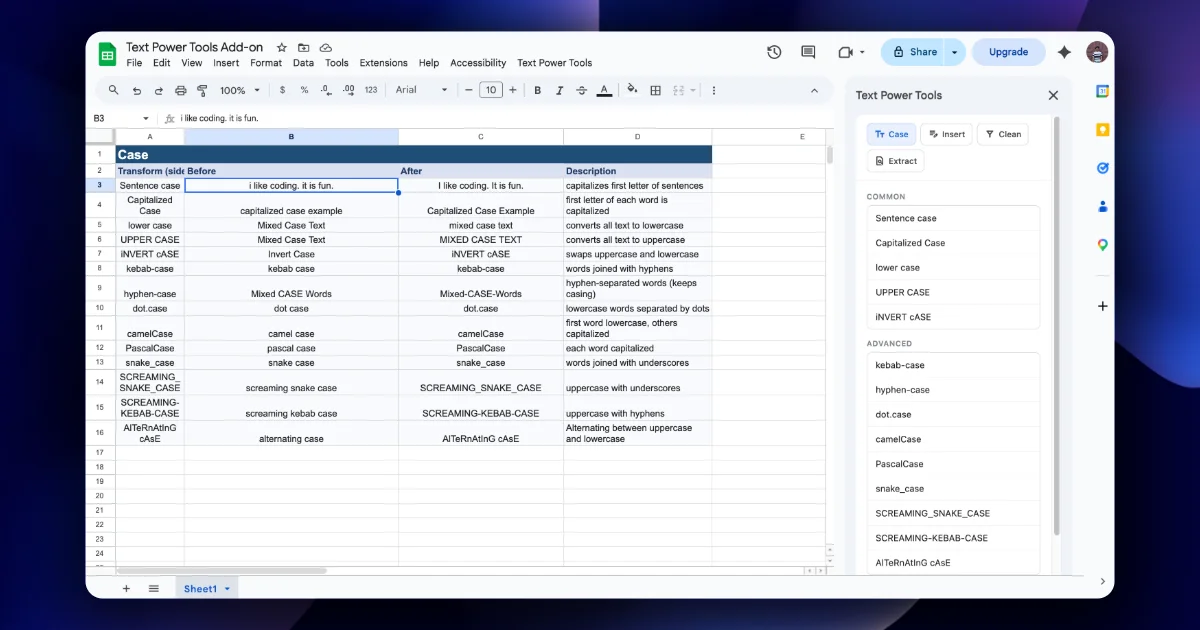
The third row is the classic mistake: regular expressions are case-sensitive by default. If lower-case IDs should match, use [Ii][Nn][Vv]-\d{6}, or make the column upper case first with the Case tab.
Test with a formula first
Before applying a pattern to a whole column in place, try it in a helper cell with =REGEXEXTRACT(A2, "INV-\d{6}"). Sheets uses the RE2 regex engine for its REGEX functions, so a pattern that works there avoids lookbehind and backreferences, which RE2 does not support. The add-on may accept more syntax than RE2 (see the regex flavour note above), but a pattern that passes in REGEXEXTRACT is the safe common subset.
Quick check
-
How do you match a literal dollar sign?Escape it:
\$. -
Why does
\d+return too much from an order line?It matches every run of digits. Anchor it to context, such as a prefix or a fixed length. -
What does "global match" mean for a cell with three invoice numbers?All three are returned, joined by the delimiter.