This recipe combines chapters 1-6 into one pass on a typical CRM or form export. The order matters: each step makes the next one more reliable.
The sample export
| A: Name | B: Phone | C: Notes | D: Account |
|---|---|---|---|
asha RAO | +91 98450-12345 | Call asha@acme.io re renewal | 1042 |
raj kumar | (080) 4123 4567 | cc ops@acme.io, raj@acme.io | 1043 |
LI WEI | +65 6123 4567 | prefers WhatsApp | 1044 |
Sample data for practice.
The recipe
1. Duplicate the tab
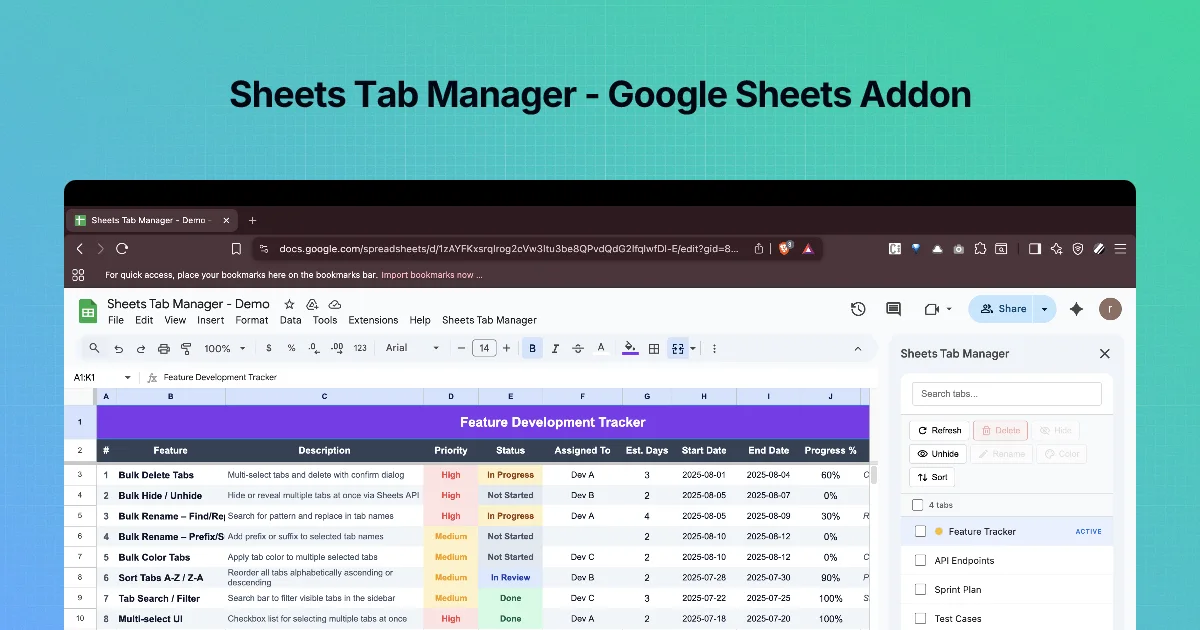
Right-click the tab → Duplicate. Work on the copy. (Got a workbook with too many tabs already? See the Sheets Tab Manager course.)
2. Trim everything
Select A2:D4. Clean → Trim both → Apply. Every later step depends on this.
3. Fix name case
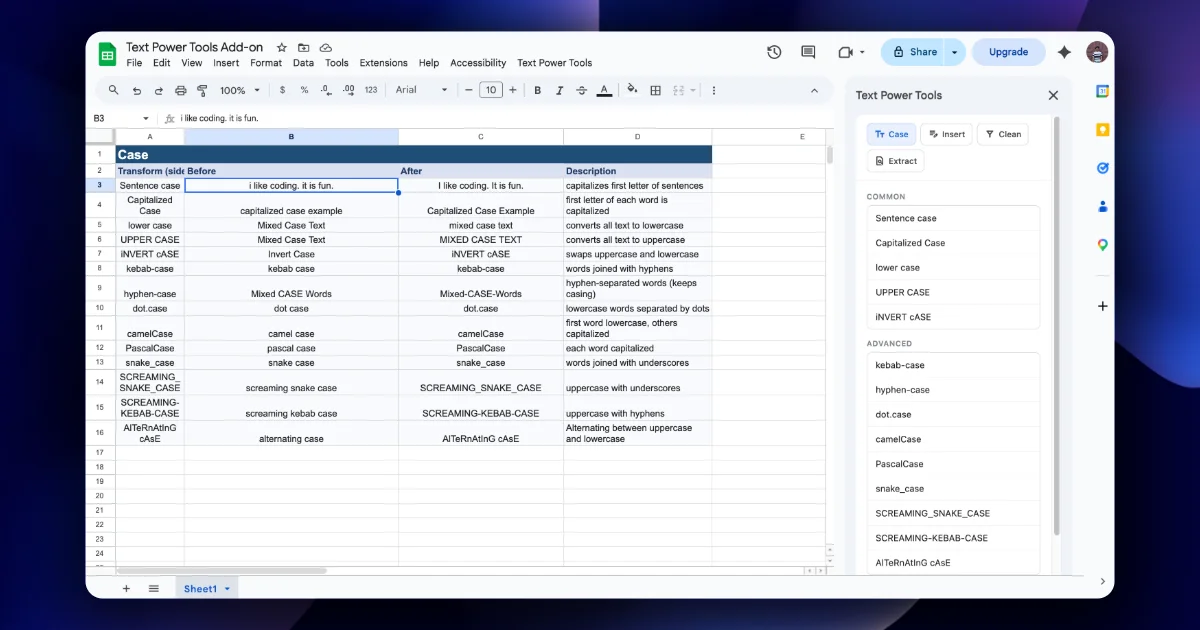
Select A2:A4. Case → Capitalized Case → Apply. Result: Asha Rao, Raj Kumar, Li Wei. Review names with apostrophes or particles (de, van) by hand.
4. Normalise phone numbers
Format column B as Plain text first. Select B2:B4. Clean → Keep digits only → Apply. Result: 919845012345, 08041234567, 6561234567. If your next system expects a +, use Insert → Add prefix with + on the numbers that include a country code.
5. Extract emails into their own column
Copy C2:C4 to E2:E4 as values (header Email). Select E2:E4. Extract → Email addresses, delimiter ,, Unique matches only, Apply. The notes stay in C; the emails land in E. Row 4 has no email and needs follow-up.
6. Prefix account IDs
Select D2:D4. Insert → Add prefix ACC- → Apply: ACC-1042, ACC-1043, ACC-1044.
7. Make headers import-ready
Select the header row. Case → snake_case → Apply: name, phone, notes, account, email.
8. Check before you ship
- Filter the
emailcolumn for blanks and thephonecolumn for lengths that look wrong (=LEN(B2)). - Data → Data clean-up → Remove duplicates on the email column if you need unique contacts.
- Spot-check five rows against the original tab.
Why this order
| If you skip… | Then… |
|---|---|
| Trim before Case | Naming styles turn edge spaces into stray _ |
| Plain-text format before digits | Leading zeros vanish |
| Copying before Extract | Notes are replaced by emails and lost |
| The check | You ship a file with silent blanks |
Make it repeatable
Write the steps above into the first rows of a "README" tab in the workbook, so the next person runs the same clean-up. If you do this weekly, keep a copy of the Text Power Tools - Examples Workbook layout as a template.
Where next
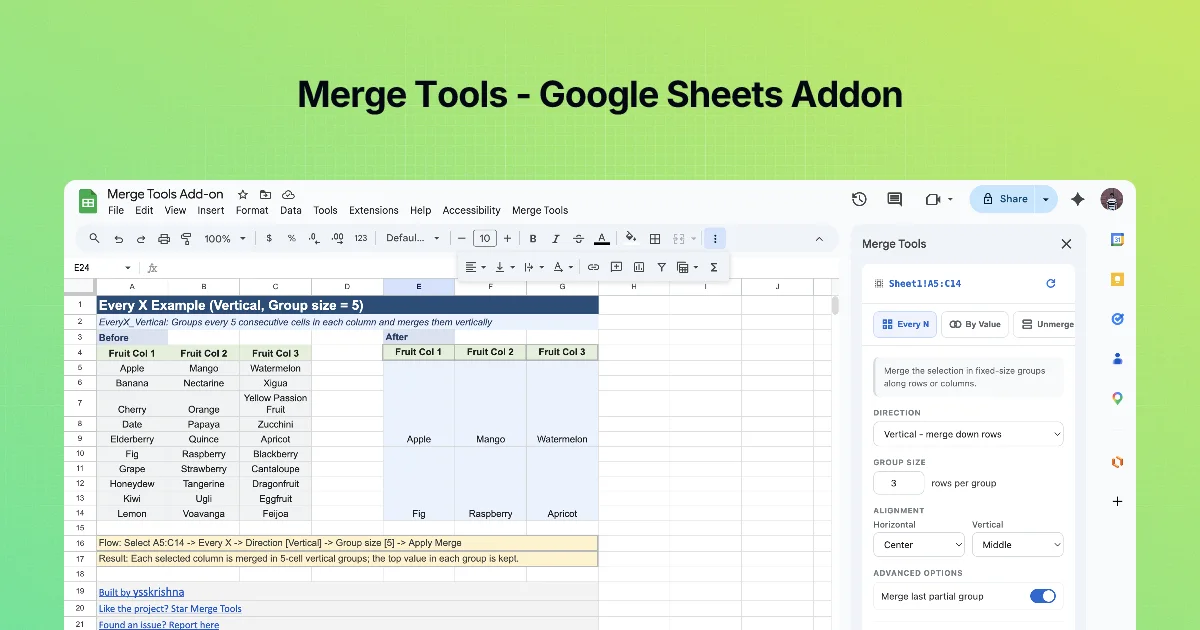
- Layout problems (merged headers, grouped rows) are a job for Merge Tools.
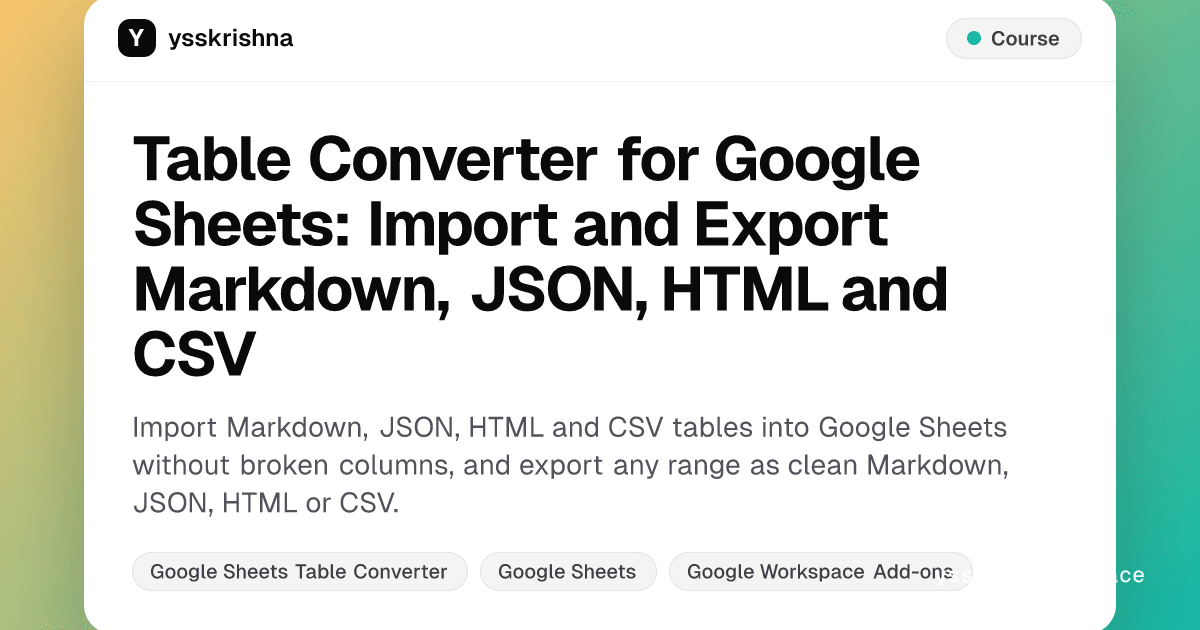
- Need the clean table as Markdown, JSON or HTML? Use Table Converter.
Expected result
After the eight steps, the sample export should read:
| name | phone | notes | account | |
|---|---|---|---|---|
Asha Rao | 919845012345 | Call asha@acme.io re renewal | ACC-1042 | asha@acme.io |
Raj Kumar | 08041234567 | cc ops@acme.io, raj@acme.io | ACC-1043 | ops@acme.io, raj@acme.io |
Li Wei | 6561234567 | prefers WhatsApp | ACC-1044 | (empty, follow up) |
Formula checks you can paste below the data:
| Check | Formula | Expect |
|---|---|---|
| No edge spaces in names | =SUMPRODUCT(LEN(A2:A4)<>LEN(TRIM(A2:A4))) | 0 |
| Phones are digits only | =SUMPRODUCT(--ISERROR(VALUE(B2:B4))) | 0 |
| Account IDs unique | =COUNTA(D2:D4)=COUNTA(UNIQUE(D2:D4)) | TRUE |
If a check fails, fix it on the working tab; the step 1 duplicate is your reference and your undo.
Quick check
-
Why trim before changing case?Edge spaces become stray separators in naming styles and break matches.
-
Where do extracted emails go in this recipe, and why?Into a copied column, so the original notes are kept.
-
What do you set on the phone column before Keep digits only?Plain text format, to keep leading zeros.