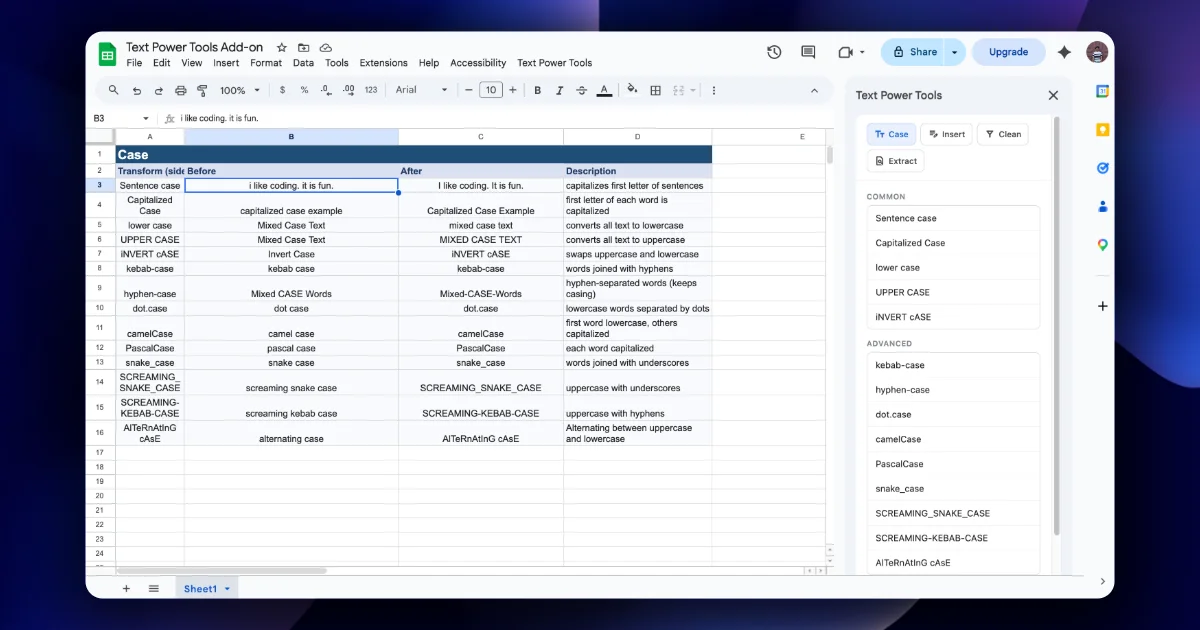
Text in a spreadsheet rarely starts clean. It arrives from CRM exports, form responses, copy-pasted web tables and colleagues who type differently. Before you can sort, filter, deduplicate or import it, you have to fix it. Formulas can do most of this, but each fix means a helper column, a formula, a copy and a paste-as-values. Text Power Tools does the fix in place, on the cells you select, from a sidebar.
Five kinds of messy text
| Symptom | Example | Why it hurts | Tab |
|---|---|---|---|
| Stray whitespace | " Asha Rao " | "Asha Rao" and " Asha Rao " don't match in lookups or duplicates checks | Clean |
| Inconsistent case | ORDER id, order ID | Looks sloppy; breaks case-sensitive matches and column naming | Case |
| Missing fixed text | 1042 instead of SKU-1042 | Codes that another system expects with a prefix | Insert |
| Unwanted characters | $1,200.00, +91 98450-12345 | Numbers stored as text; phone formats that won't import | Clean |
| Data buried in free text | Call asha@acme.io re invoice | You need the email, not the note | Extract |
Most clean-ups combine two or three of these. The recipe in chapter 7 runs them in order.
Opening the sidebar
- Install Text Power Tools from its Google Workspace Marketplace listing. It is free.
- In any spreadsheet, open Text Power Tools → Start from the menu. The add-on's own posts give this path; in most accounts add-ons appear under Extensions.
- The sidebar opens on the right with four tabs: Case, Insert, Clean and Extract. The footer reads "Built by ysskrishna".
The general flow is the same on every tab: select the range, choose the operation, set its options, click Apply.
How it changes your data
Text Power Tools rewrites the selected cells in place. Extract, for example, replaces each cell's content with the matches it found. That is what makes it fast, and also why the next two habits matter.
Two habits for safe bulk edits
- Work on a copy first. Right-click the tab → Duplicate, or practise in the Text Power Tools - Examples Workbook. The add-on's own guidance says the same: if a clean-up feels even slightly destructive, test it first.
- Select only what you mean to change. Select the data column, not the whole sheet. Leave header rows out of the selection unless you want them changed too.
Undo is your third line of defence: Sheets' Edit → Undo (Ctrl+Z / ⌘Z) normally reverses the last change.
Formulas or the add-on?
| Use a formula when… | Use Text Power Tools when… |
|---|---|
| The source keeps updating and the result must update too | You are fixing data once before using it |
| You need the original next to the result | You want the original replaced |
The rule is simple, like =TRIM(A2) | You need several steps, naming styles or pattern extraction |
Formulas such as TRIM, PROPER, UPPER and REGEXEXTRACT are great for live data. For a one-off clean-up of 5,000 rows, a sidebar that rewrites the values is faster and leaves no helper columns behind.
Step by step: your first clean-up
- Make a new sheet and paste these into A1:A4 (sample data):
  Asha Rao
RAJ  KUMAR
li wei
maria GARCIA- Select A1:A4.
- Open Clean, choose Trim both, click Apply. Leading and trailing spaces are gone.
- Open Case, choose Capitalized Case, click Apply. You should see
Asha Rao,Raj Kumar,Li Wei,Maria Garcia. - Notice the double space inside
Raj Kumar: trimming only touches the ends. Chapter 2 covers inner spaces.
Quick check
-
A lookup fails although the names look identical. Which tab do you try first?Clean: trailing or leading spaces are the usual cause.
-
Does Text Power Tools write results to a new column?No. It rewrites the selected cells in place, which is why you work on a copy first.
-
Your data refreshes daily from a connector. Formula or add-on?A formula, so the clean result updates with the source.