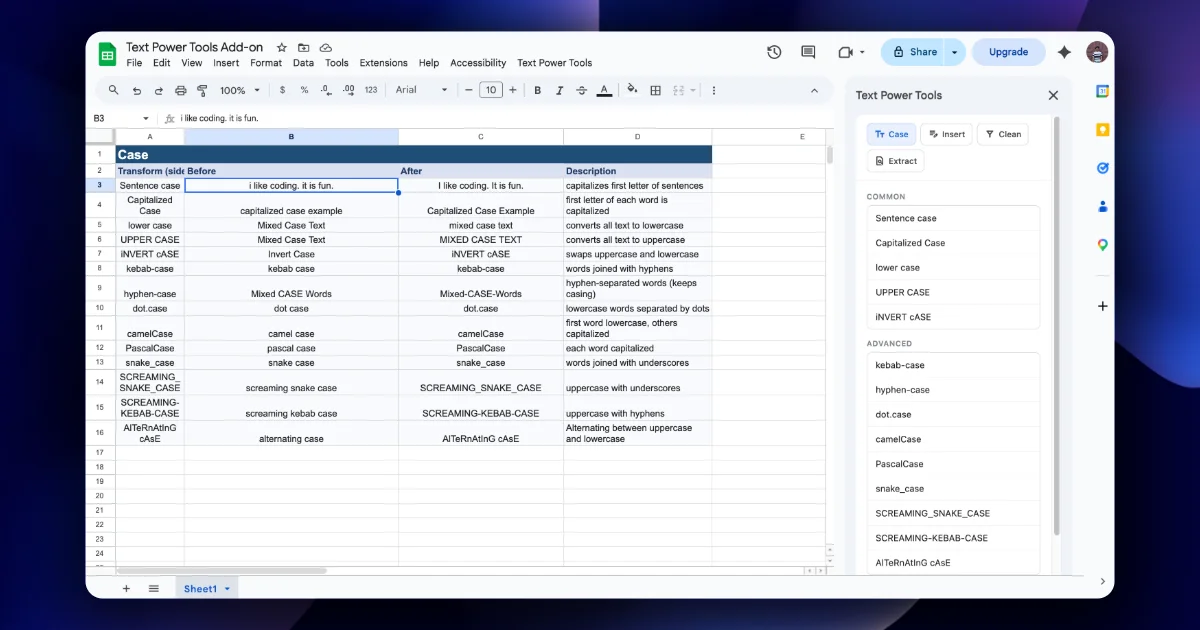
The Clean tab handles the clean-ups people most often do by hand. It has three groups, shown in the sidebar exactly like this:
- WHITESPACE: Trim start, Trim end, Trim both.
- KEEP / REMOVE: Keep alphanumeric only, Keep letters only, Keep digits only, Remove all digits.
- STRIP SPECIFIC CHARACTERS: a field labelled "Characters to remove (each character)" with an Apply button.
The listing notes that these rules are Unicode-aware where applicable, so letters such as é or ß count as letters.
Whitespace
| Option | Removes | Use for |
|---|---|---|
| Trim start | Spaces before the text | Indented imports |
| Trim end | Spaces after the text | Values copied from web tables, which often end in a space |
| Trim both | Both | The default choice for names, emails and IDs |
Trimming does not touch spaces inside the text. "Raj Kumar" keeps its double space. To collapse inner runs of spaces, use Sheets itself: Edit → Find and replace, tick Search using regular expressions, find {2,} and replace with a single space. Or, for live data, =TRIM(A2), since Google Sheets' TRIM also collapses repeated inner spaces.
Keep or remove
These options filter each cell down to a character class:
| Option | "Order #A-1042 (paid)" becomes |
|---|---|
| Keep alphanumeric only | OrderA1042paid |
| Keep letters only | OrderApaid |
| Keep digits only | 1042 |
| Remove all digits | Order #A- (paid) |
Expected results based on the option names; check against your own data.
Keep digits only is the workhorse. It turns phone numbers, IDs and amounts stored as text into plain digits:
| Before (sample) | After Keep digits only |
|---|---|
+91 98450-12345 | 919845012345 |
(555) 010-2030 | 5550102030 |
INV-000731 | 000731 |
Watch for two traps. Decimal points are not digits, so $1,200.50 becomes 120050, a hundred times too big. And leading zeros may disappear if Sheets then treats the result as a number. Format the column as Plain text first (Format → Number → Plain text) when zeros matter.
Strip specific characters
When you only want to remove a few characters, type them into "Characters to remove (each character)". Every character you type is removed wherever it appears. The sidebar's placeholder shows the idea: $,%&.
| Goal | Type | "$1,200.50" becomes |
|---|---|---|
| Amount as a number | $, | 1200.50 |
| Remove quotes | "' | text without quotes |
| Remove brackets | ()[] | text without brackets |
This is safer than Keep digits only for money, because the decimal point survives.
Step by step: clean an amount column
- Paste sample amounts into a column:
$1,200.50,$85.00,$12,000. - Select the cells. Open Clean.
- Click Trim both, then Apply.
- In "Characters to remove", type
$,and click Apply next to the field. - Select the column and use Format → Number → Number. The values now sum correctly.
Which option, when
- Names, emails, IDs: Trim both.
- Phone numbers for an import: Trim both, then Keep digits only (format the column as plain text first).
- Money: Strip specific characters with your currency symbol and thousands separator.
- Codes with letters and digits: Keep alphanumeric only.
Quick check
-
Why not use Keep digits only on "$1,200.50"?It removes the decimal point too, giving 120050. Strip
$,instead. -
Trim both left a double space in the middle. How do you fix it?Sheets Find and replace with a regex such as
{2,}→ one space, or=TRIM()for live data. -
Phone numbers lost their leading zero. What should you have done?Format the column as Plain text before cleaning.