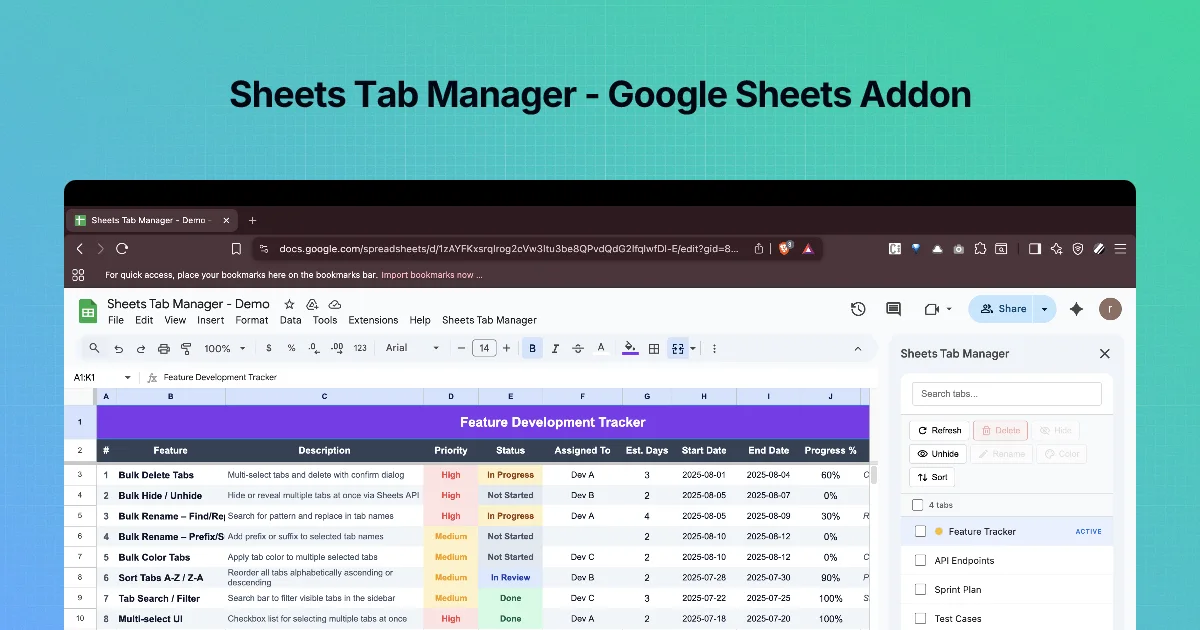
Renaming is where tab debt hurts most. A naming convention changes and you face twenty right-click → Rename → type → Enter cycles. Sheets Tab Manager renames a whole selection in one dialog.
The Rename dialog
Select tabs, click Rename, and the dialog (for example Rename 2 tabs) shows:
- Find: (placeholder "Text to find")
- Replace with: (placeholder "Replacement text")
- A preview listing each tab's current name and its new name, e.g.
Sprint Plan → Sprint Plan, updating as you type - Cancel and Rename
The listing describes three renaming styles: find/replace, pattern-based and prefix/suffix.
Find and replace
| Goal | Find | Replace with | Copy of Jan → |
|---|---|---|---|
| Remove "Copy of " | Copy of | (empty) | Jan |
| Fix a typo | Recieved | Received | - |
| Change a year | 2025 | 2026 | - |
| Swap separators | - | · | - |
Leave Replace with empty to delete the found text.
Prefixes and suffixes
Add the same label to a batch: ARCHIVE - before old months, (old) after deprecated tabs. Combined with Sort (chapter 5), a prefix also groups tabs together.
Always read the preview
The preview is the safety net. Check for:
- Collisions. Two tabs cannot have the same name. If
Jan 2025andJan 2026both becomeJan, the rename cannot complete. - Partial matches. Finding
Q1also matchesQ10andQ11if you have them. - Formulas. Sheets updates references like
='Q1 2025'!B2when a tab is renamed through its UI; check one formula after a bulk rename to confirm.
Step by step: standardise month tabs
- Create tabs
Jan 2025,Feb 2025,Mar 2025. - In the sidebar, search
2025, tick all three, click Rename. - Find:
2025· Replace with: (empty). Check the preview showsJan,Feb,Mar. - Click Rename.
- Now tick all three again and add the prefix
2025-(prefix/suffix mode) to get2025-Jan,2025-Feb,2025-Mar.
Naming conventions that age well
- Sortable dates first:
2026-01, notJan 26. - One separator style: hyphens or spaces, not both.
- Prefixes for groups:
IN -,OUT -,CALC -. - No "Copy of" in anything you keep.
Practice: tidy month names
Start with tabs named inconsistently, as they often are after a year of copying:
| Before | Goal |
|---|---|
Jan sales | 2026-01 Sales |
Feb sales | 2026-02 Sales |
Mar sales | 2026-03 Sales |
Find and replace works on part of a name, so do it in two passes:
- Tick all three tabs and click Rename. In Find: type
sales, in Replace with: typeSales. Read the preview, click Rename. - Tick only
Jan Sales, click Rename, findJan, replace with2026-01. Repeat for Feb and Mar. Three tiny renames are still faster than right-click → Rename on each, and the preview shows the exact result before you commit.
When a part of the name is identical across many tabs (a year, a team name, "Copy of"), one pass handles them all; that is where bulk rename saves the most time.
Why ISO-style prefixes
2026-01, 2026-02 and so on sort correctly with the add-on's Sort (A → Z), across years too. Names such as Jan, Feb, Mar sort alphabetically into Apr, Aug, Dec, which is useless for months. If you plan to sort tabs, rename first so the names carry their own order.
Watch out for formulas
Sheets updates formulas that reference a tab when you rename it, so ='Jan sales'!B2 becomes ='2026-01 Sales'!B2 automatically. Text that only looks like a reference does not update: an INDIRECT("Jan sales!B2") formula, a hyperlink label, or another file's IMPORTRANGE string still uses the old name and breaks. Search for the old names (Edit → Find and replace, within formulas) before renaming tabs that other files depend on.
Common mistakes
- Replacing a short string that also appears elsewhere, for example finding
Q1also changesQ1 2025 archive. The preview catches this; read every line. - Leaving a trailing space in a name, which makes
'Sales '!A1references hard to spot. Trim names while renaming.
Quick check
-
How do you delete text from many tab names?Find the text and leave Replace with empty.
-
Why can renaming fail even when the preview looks fine?Two tabs would end up with the same name.
-
Why put the year first in month tab names?So alphabetical sorting is also chronological.