Hiding is the gentle alternative to deleting. A hidden tab keeps its data and formulas, but it disappears from the tab strip. That makes a shared workbook easier to read without losing the sheets that power it.
Hide many tabs
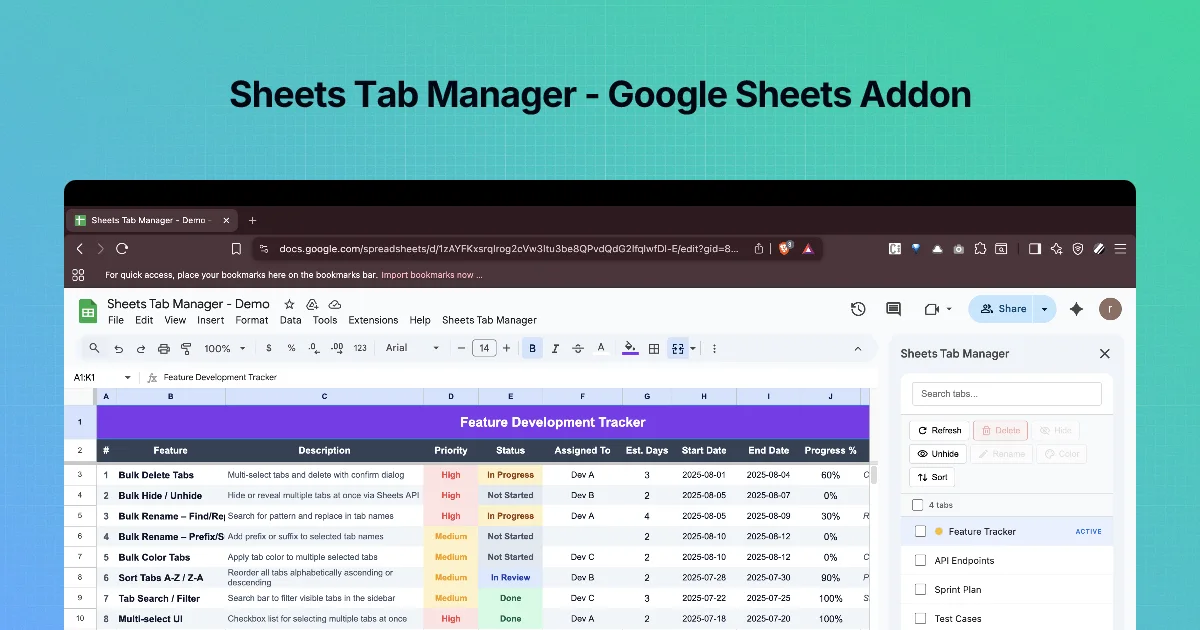
- Open the sidebar. Tick the tabs to hide: raw data, lookups, calculations.
- Click Hide.
- They vanish from the tab strip and show a HIDDEN badge in the sidebar list.
Unhide many tabs
- Search or scan for tabs with the HIDDEN badge.
- Tick them.
- Click Unhide.
Unhiding in bulk is where the sidebar saves the most time: in plain Sheets, you unhide hidden tabs from the View → Hidden sheets menu or the All sheets list, one by one.
What hiding is, and is not
| Hiding does | Hiding does not |
|---|---|
| Remove the tab from the tab strip | Protect the data |
| Keep formulas that reference it working | Stop editors from unhiding it |
| Tidy the view for readers | Leave it out of an Excel (.xlsx) download, which includes hidden sheets |
Anyone with edit access can unhide a tab. If data must not be seen, put it in a separate file with different sharing, or use protected ranges for edits (Data → Protect sheets and ranges), which control editing, not viewing.
An audit routine
Before sharing or handing over a workbook:
- Unhide everything (select all HIDDEN tabs → Unhide).
- Review each tab: keep, delete, or hide again.
- Hide the working tabs you keep.
- Leave one clear first tab (a summary or README) visible and active.
Step by step: tidy a shared report
- In a workbook with tabs
Summary,Raw_Jan,Raw_Feb,Lookups, searchRaw. - Tick both raw tabs and
Lookups. Click Hide. - Check the tab strip now shows only
Summary, and the sidebar shows three HIDDEN badges. - Reverse it: tick the three, click Unhide.
Practice: hide the archive, keep the current quarter
Suppose a file has these tabs:
| Tab | Should readers see it? |
|---|---|
| Dashboard | Yes |
| Q4 2026 | Yes |
| Q3 2026, Q2 2026, Q1 2026 | No (archive) |
| Lists | No (lookup data) |
- In the sidebar, search
2026. Untick Q4 2026, tick the other three quarters. - Click Hide. The three tabs now show the HIDDEN badge in the list.
- Clear the search, tick Lists, click Hide again.
- Look at the tab bar at the bottom of the sheet: only Dashboard and Q4 2026 remain.
Next quarter, search 2026 again, tick Q4 2026 and hide it, and the new quarter becomes the visible one.
Hidden is not private
This is the most important point in the chapter. Anyone with edit access can unhide a tab from View → Hidden sheets or the right-click menu. Anyone with view access can still see hidden data in some routes, for example a downloaded copy of the file, and formulas on visible tabs keep reading hidden tabs normally. If a tab holds salaries, personal data or anything the readers must not see, move it to a separate file with its own sharing settings. Protected ranges (Data → Protect sheets and ranges) stop edits, not viewing.
Hiding versus deleting
| Choose | When |
|---|---|
| Hide | You still need the data, or formulas read it, and you only want a tidy tab bar |
| Delete | Nothing reads the tab and the data exists elsewhere (or in version history) |
| Move to another file | The data is sensitive, or the file is slow because of its size |
A useful rule of thumb: hide by default, delete only what you would not miss, and move anything private.
Common mistakes
- Hiding the only visible tab. Sheets needs at least one visible tab, so leave one unticked.
- Forgetting hidden tabs when you hand the file over. Mention them in a README tab so the next owner knows they exist.
Quick check
-
Do formulas in Summary still work after you hide Raw_Jan?Yes. Hidden tabs keep working.
-
Is hiding a way to keep salaries private from editors?No. Editors can unhide tabs. Use a separate file with separate sharing.
-
What is step 1 of the hand-over audit?Unhide everything so nothing is reviewed by accident.