HTML tables
Use HTML Table when you have the table's markup: from a page's source, an exported report, an HTML email, or a docs tool.
<table>
  <tr><th>Plan</th><th>Price</th></tr>
  <tr><td>Free</td><td>$0</td></tr>
  <tr><td>Team</td><td>$12</td></tr>
</table>
Getting the markup
- In Chrome, right-click the table → Inspect.
- In the Elements panel, right-click the
<table>element → Copy → Copy outerHTML. - Paste that into DATA SOURCE with HTML Table selected, choose the destination, Import.
Things to check
<th>cells are the natural header row.colspan/rowspan(merged cells) don't map one-to-one to a grid. If the result looks shifted, simplify the HTML or fix it after import. Merging can be redone cleanly with Merge Tools.- Links and styles: expect the cell text.
CSV
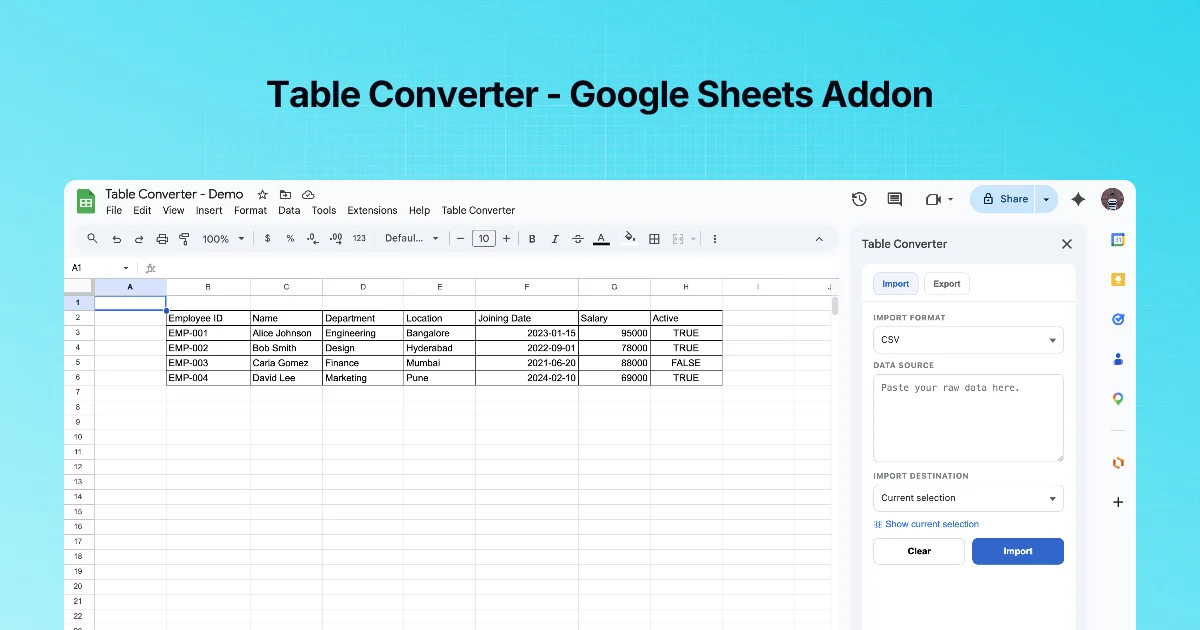
Sheets has its own CSV import (File → Import), which is the better choice for a CSV file. Table Converter's CSV import is handy when you have CSV text: from a terminal, a log, a chat message or an API.
Quoting rules that matter
name,notes,amount
"Rao, Asha","said ""call me""",1200
Li Wei,,85- A value containing a comma, a quote or a line break is wrapped in double quotes.
- A double quote inside a quoted value is written twice:
"". - Empty values are just nothing between commas.
If a column splits in the wrong place, a value with a comma was not quoted at the source. Fix the source or quote it before importing.
Other separators
Semicolon-separated "CSV" (common in European exports) and tab-separated text are not comma-separated. Paste tab-separated text straight into Sheets (it splits on tabs natively), or use File → Import with a custom separator.
Step by step: a pricing table from a web page
- Inspect the page's pricing table and Copy outerHTML.
- Sidebar → Import → HTML Table → paste.
- Destination: new sheet → Import.
- Clean prices with Text Power Tools (Clean → strip
$,) so you can compare them as numbers. See the Text Power Tools course.
Practice: a CSV with quotes
name,company,notes
Asha,"Acme, Inc.","Said ""call after 5"""
Ravi,Globex,
Import with CSV and check: three columns, Acme, Inc. stays in one cell (the quotes protect the comma), the note reads Said "call after 5" (doubled quotes become one), and Ravi's notes cell is empty. If Acme and Inc. land in separate columns, the quotes were lost when the text was copied, often because a chat app or a word processor turned straight quotes into curly ones.
Which import route for which source
| Source | Best route |
|---|---|
A .csv file on your computer | Sheets' File → Import (no copy-paste needed) |
| CSV text in an email, a chat or a log | Table Converter, CSV |
| A table on a public web page | =IMPORTHTML(url, "table", 1) if it should stay live; Table Converter HTML Table with the copied markup for a one-off snapshot |
| A table inside a page you must log in to | Copy the <table> markup from the browser's developer tools, then HTML Table |
IMPORTHTML refetches the page on its own schedule and fails on pages that need a login or build the table with JavaScript, which is when pasting the markup is the dependable option.
Quick check
-
How do you copy just a table's HTML from a web page?Inspect it, then right-click the table element → Copy → Copy outerHTML.
-
How do you write a quote inside a quoted CSV value?Double it:
"". -
You have a CSV file, not text. Which import is better?Sheets' File → Import.