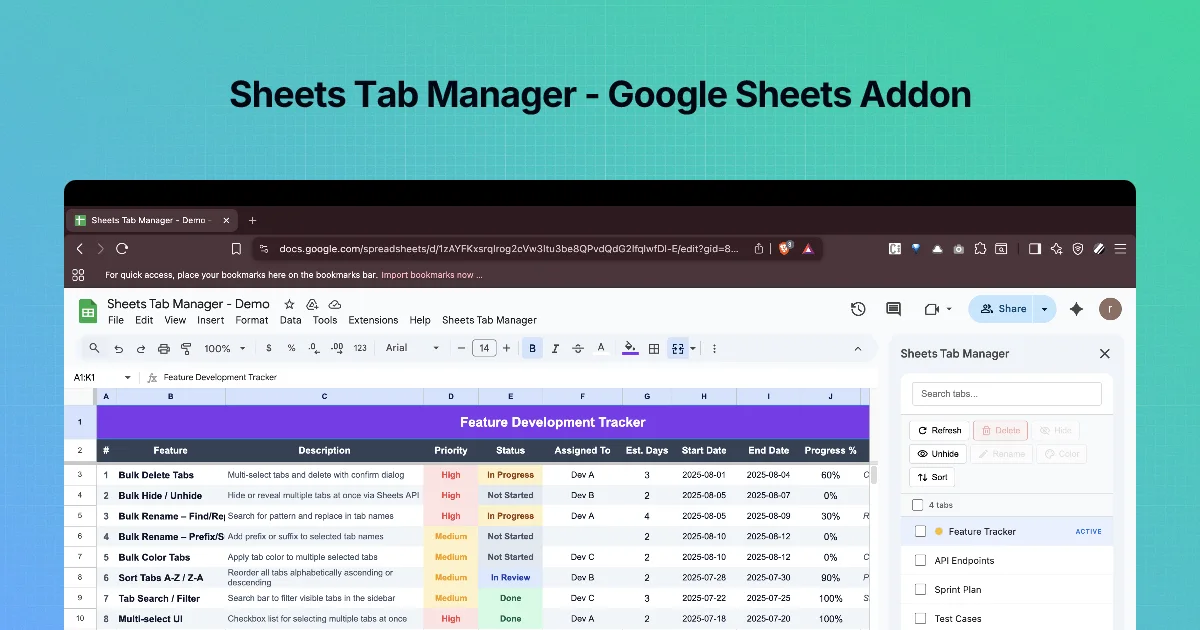
This is the most searched tab task: "how do I delete multiple tabs in Google Sheets at once". With Sheets Tab Manager it is a three-click job, with a confirmation that names every tab before anything is removed.
The confirmation dialog
When you click Delete with tabs selected, the add-on shows a dialog, for example:
Delete 2 tabs? This will permanently delete the following tabs and their data: • Sprint Plan • Test Cases
with Cancel and a red Delete button. Read the list. It is your last check.
Step by step
- Back up first for anything important: File → Make a copy. It takes seconds and makes the rest risk-free.
- Open the sidebar. Type a search term that matches the tabs to remove, for example
Copy of. - Tick each tab you want to delete. Check the "selected" count.
- Click Delete.
- Read the tab names in the dialog. Click Delete to confirm, or Cancel to go back.
- The tabs disappear from the tab strip and the list.
You can't delete every tab
A spreadsheet must keep at least one visible tab. If your selection covers every tab, Sheets will refuse to remove the last one.
If you deleted the wrong tab
- Try Edit → Undo straight away.
- Otherwise use File → Version history → See version history, open a version from before the delete, and either restore it or copy the tab back: in the old version, right-click the tab → Copy to → Existing spreadsheet.
- If you made a copy in step 1, copy the tab from there.
Patterns for safe bulk deletes
| Situation | Approach |
|---|---|
Scratch tabs (Copy of…, Sheet12) | Search, select all results, delete |
| Old months | Search the year, untick the ones you keep, delete the rest |
| Shared file | Hide first for a week; delete if nobody asks (chapter 3) |
| Tabs other sheets reference | Check formulas first: a deleted tab turns ='Old Tab'!A1 into #REF! |
The last row is the one that bites. Before deleting, use Edit → Find and replace, search for the tab name in formulas ("Also search within formulas"), and fix any references.
Practice: delete scratch tabs in a copy
- Make a copy of your file (File → Make a copy). Practise on the copy.
- In the sidebar, type
Copy ofin Search tabs.... - Tick every result, check the "selected" count, and click Delete.
- Read the list in the dialog ("Delete N tabs? This will permanently delete the following tabs and their data:"). If any name surprises you, click Cancel.
- Click Delete, then click Refresh and confirm the count dropped by the expected number.
Find references first
A deleted tab breaks every formula that points to it. Before step 3 on a real file, search formulas for each tab name:
| What you search for | Where | What a hit means |
|---|---|---|
'Copy of Budget'! | Edit → Find and replace, "Also search within formulas" | A formula reads this tab; repoint or delete it first |
The tab name in IMPORTRANGE calls | Other files that import this one | Another file will break; tell its owner |
| The tab in Data → Named ranges | Named ranges panel | The named range will become invalid |
Quoted names ('Copy of Budget'!A1) appear when the tab name contains spaces; search for both the quoted and unquoted form.
Undo and recovery
Use Edit → Undo (Ctrl/⌘+Z) straight away if you deleted the wrong tab. If you notice later, open File → Version history, find the version from before the delete, and either restore it or copy the lost tab out of it with "Make a copy". Restoring rolls back every change since then, so copying the single tab is usually safer in a shared file.
Quick check
-
What does the Delete dialog show before anything is removed?The number of tabs and the name of each one.
-
A formula now shows #REF!. What happened?It referenced a tab you deleted. Restore the tab from version history, or update the formula.
-
What is the cheapest backup before a big delete?File → Make a copy.